
Live Home 3D Pro for macOS
Description
Version 5.0.4 is a small fix release for macOS 12 or later, on Apple silicon and Intel. The tools are what matter, so here is where to point a new pair of eyes.
Throw a corner window into a curved wall
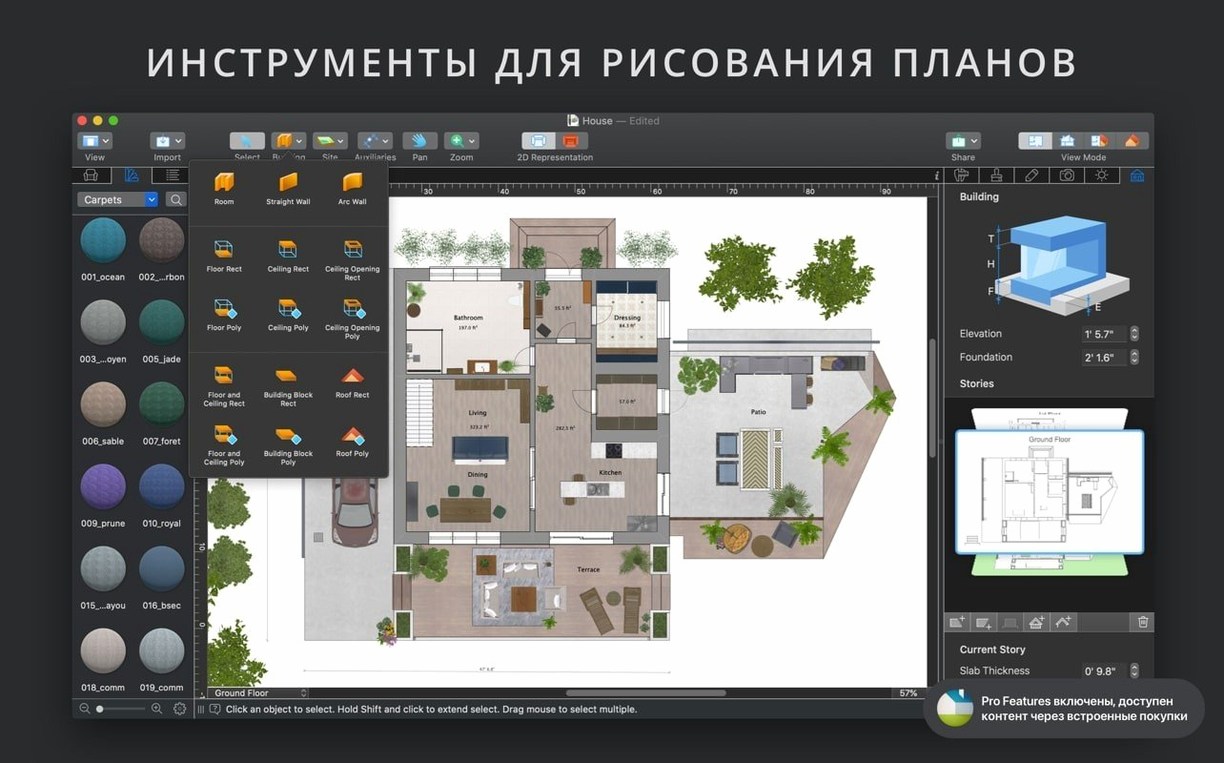
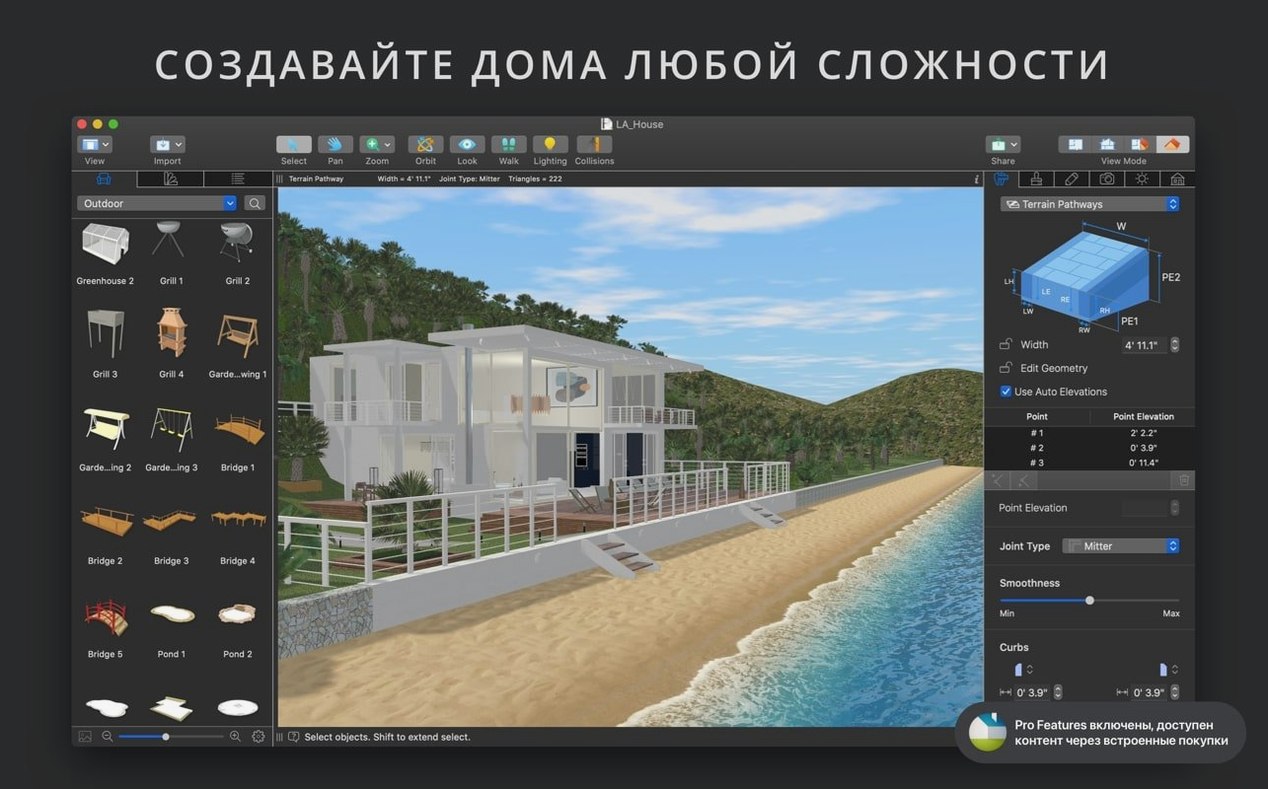
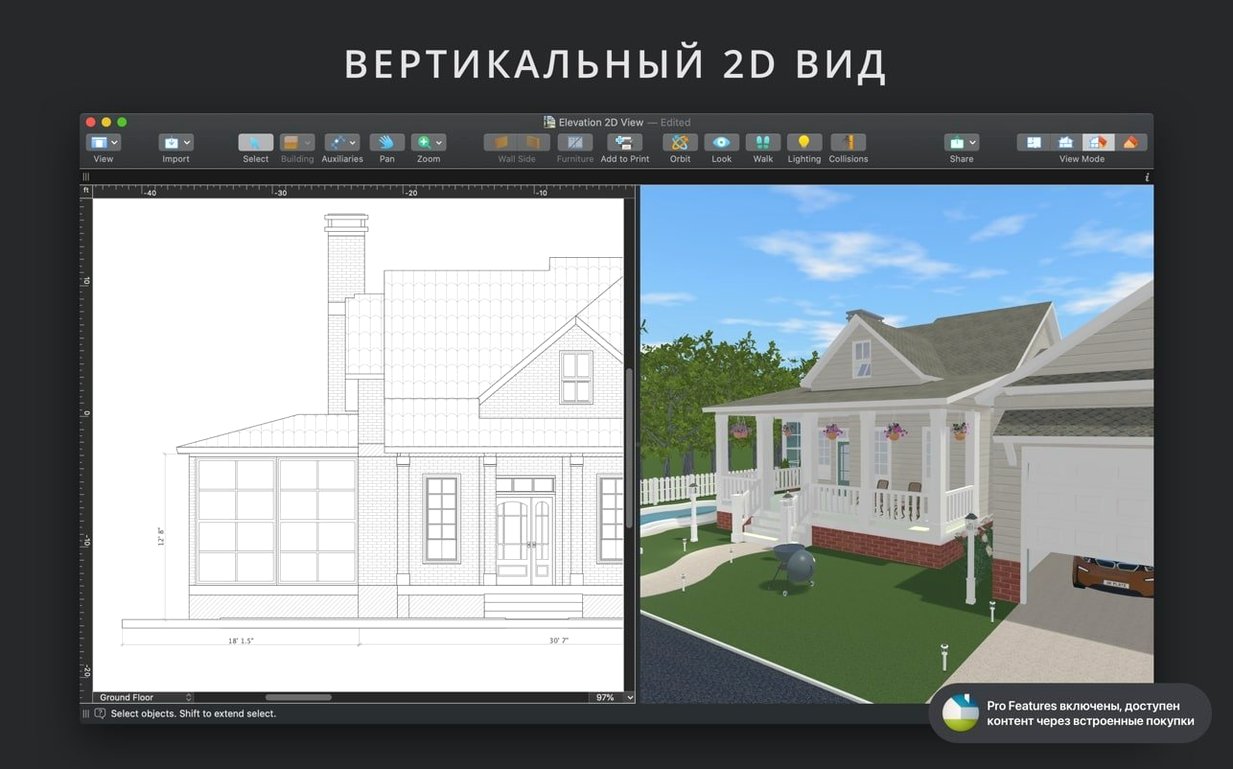
The app handles straight and curved walls without fuss. Where it earns its keep is with corner windows and complex openings that lesser design software fudges. Grab a curved wall, drop a corner window into the bend and switch to the 3D view. The automatic floor-plan outlines keep the 2D drawing legible while you work. Set up a couple of extra cameras at different angles so you can jump between viewpoints without re-navigating every time.
Pull in a sofa from Trimble 3D Warehouse
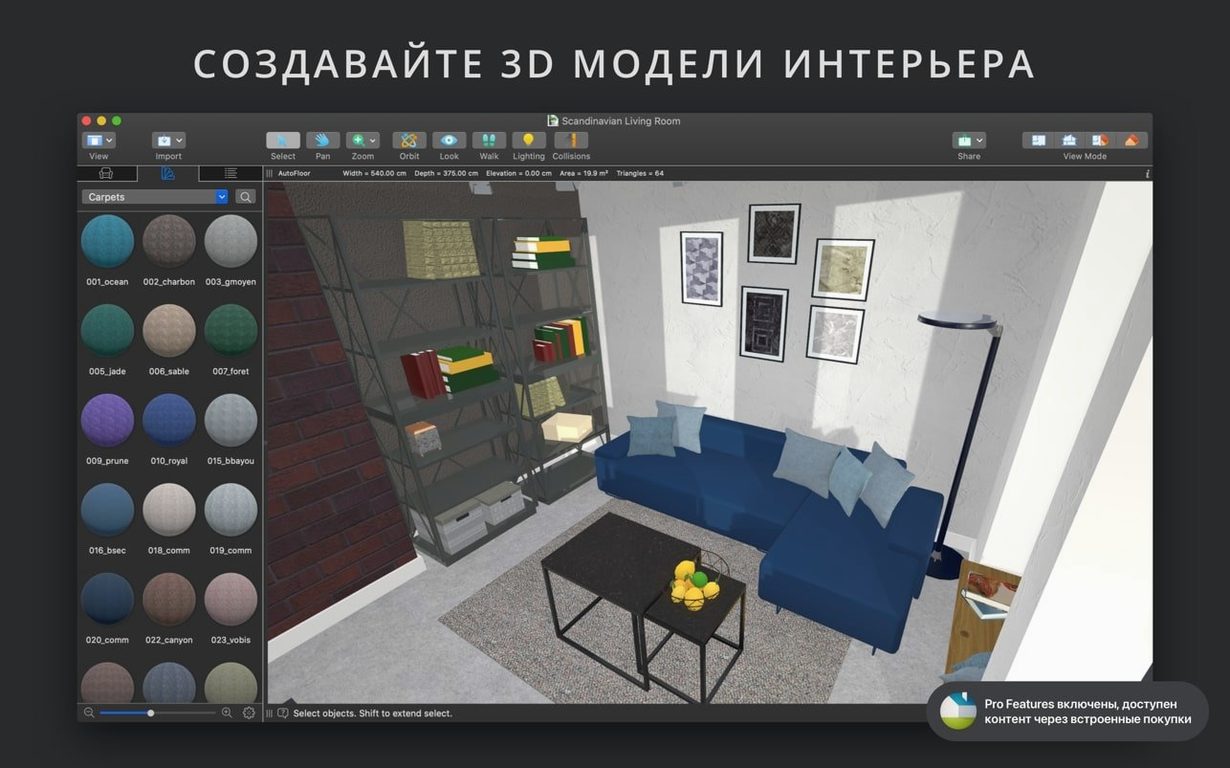
The built-in library has over 2,000 models, but you will quickly want something specific. The import list runs through SketchUp, COLLADA, KMZ, FBX, OBJ and 3DS. A practical first stop is Trimble 3D Warehouse. Bring in a model, place it, then turn on the shadow map technique to check how the light falls — softer shadows make a render look finished, not like a preview. If you get stuck, the in-app help assistant is actually useful rather than a token gesture.
3D view stays fluid on Apple silicon, even with three floors
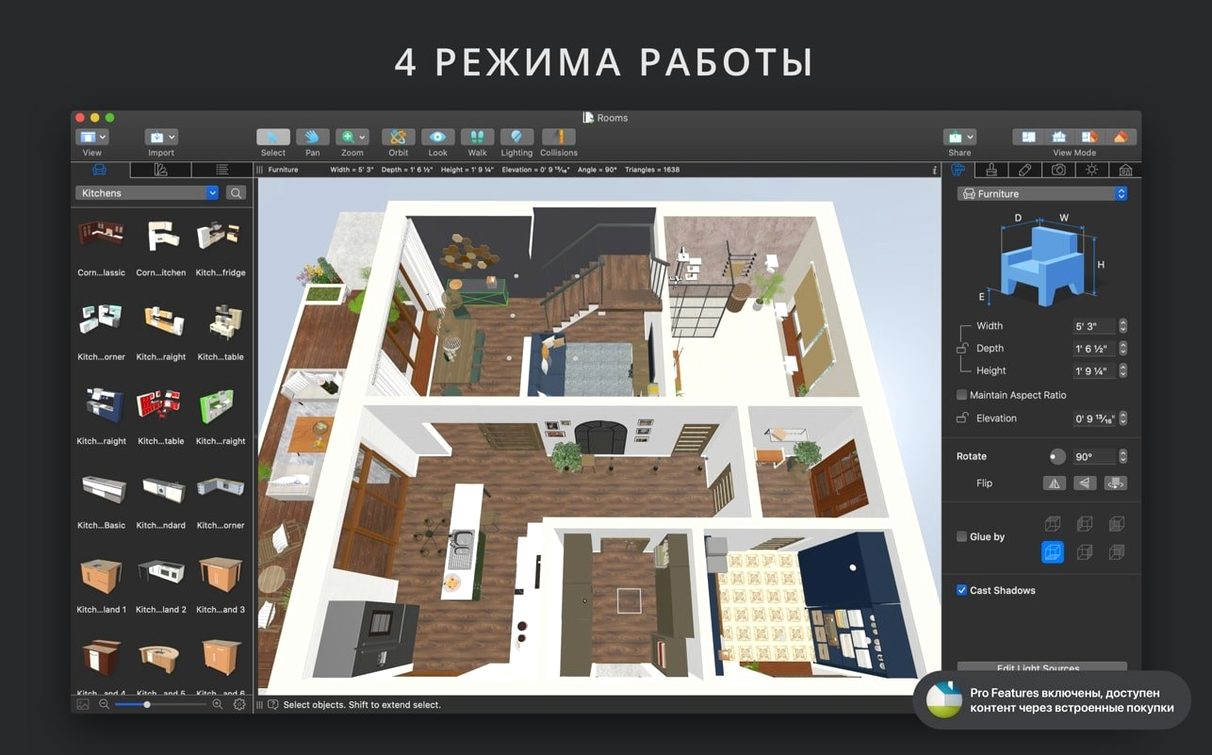
On an Apple silicon Mac, the 3D view stays fluid even with three floors and a couple of dozen light sources. The real-time render doesn’t stutter when you drag furniture around in 3D — that’s the shadow map technique doing its job without hammering the GPU. Intel machines feel a beat slower on Ultra HD walkthrough exports, but the editing viewport stays usable.
RAM is the thing to watch. A project with imported high-poly FBX models and 4K custom materials can push past 3 GB. The level-of-detail slider helps. Drop it a notch while you’re blocking out rooms, then push it back up for the final renders. The app rarely crashes — undo history is deep and keyboard navigation works as you’d expect on a Mac.
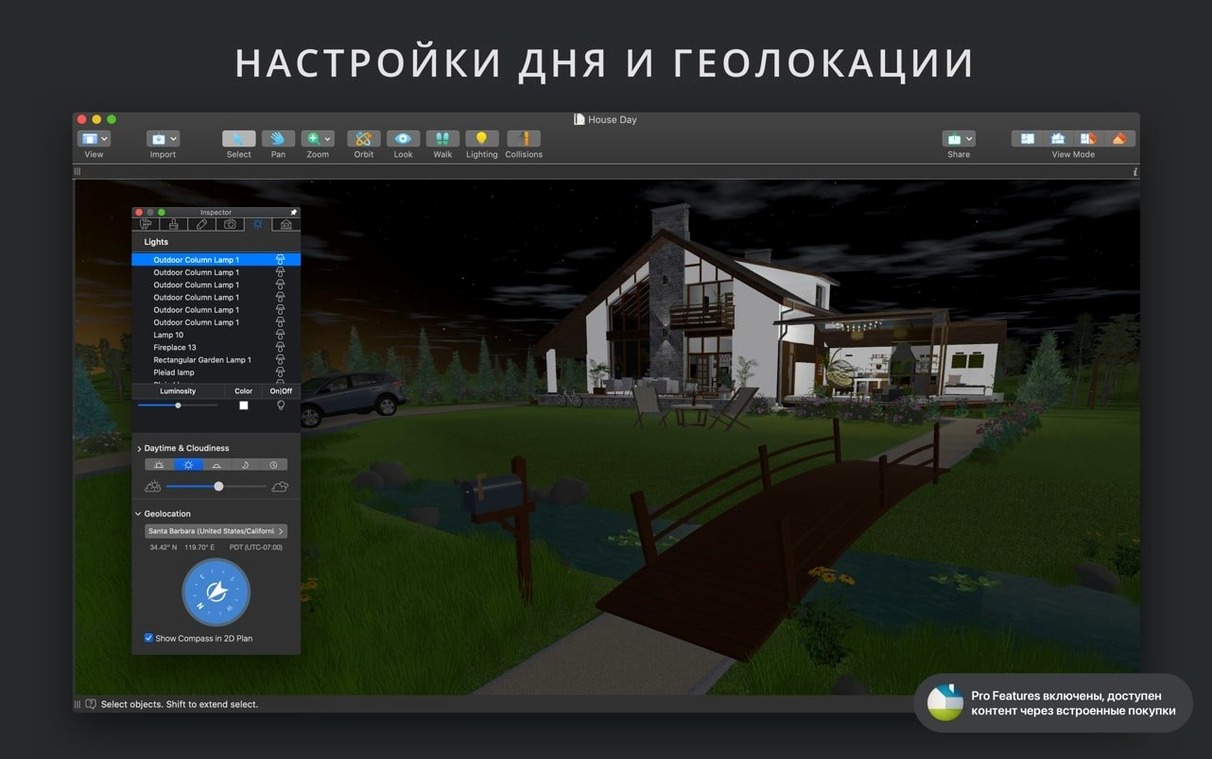
One quirk: leaving the geolocation sunlight preview running in a second window while exporting video can make the export crawl. Close the preview first.
First three things to do after installing
- Pick a measurement unit straight away. Open any template, go to the project settings and set inches, feet or metres. Switching later can nudge dimension lines out of alignment on complex plans.
- Import one custom material from Finder. Drag a photo of a real rug or worktop onto a surface in the 3D view. The material editor will open; tweak the scale and sheen so it looks right under the default ceiling light. That one test teaches you more about the renderer than reading the manual.
- Set up two cameras and save them. One wide-angle for the whole room, one tighter for a corner detail. Toggle between them with the camera list. It stops you wasting the first hour re-framing the same shot.
Imported SketchUp model looks like a blob
Imported model looks like a blob. Some SketchUp and 3DS files arrive with missing normals or zero-thickness surfaces. Open the model in the light source editor — if the surface doesn’t catch light, re-export it from the source app with “two-sided faces” enabled.
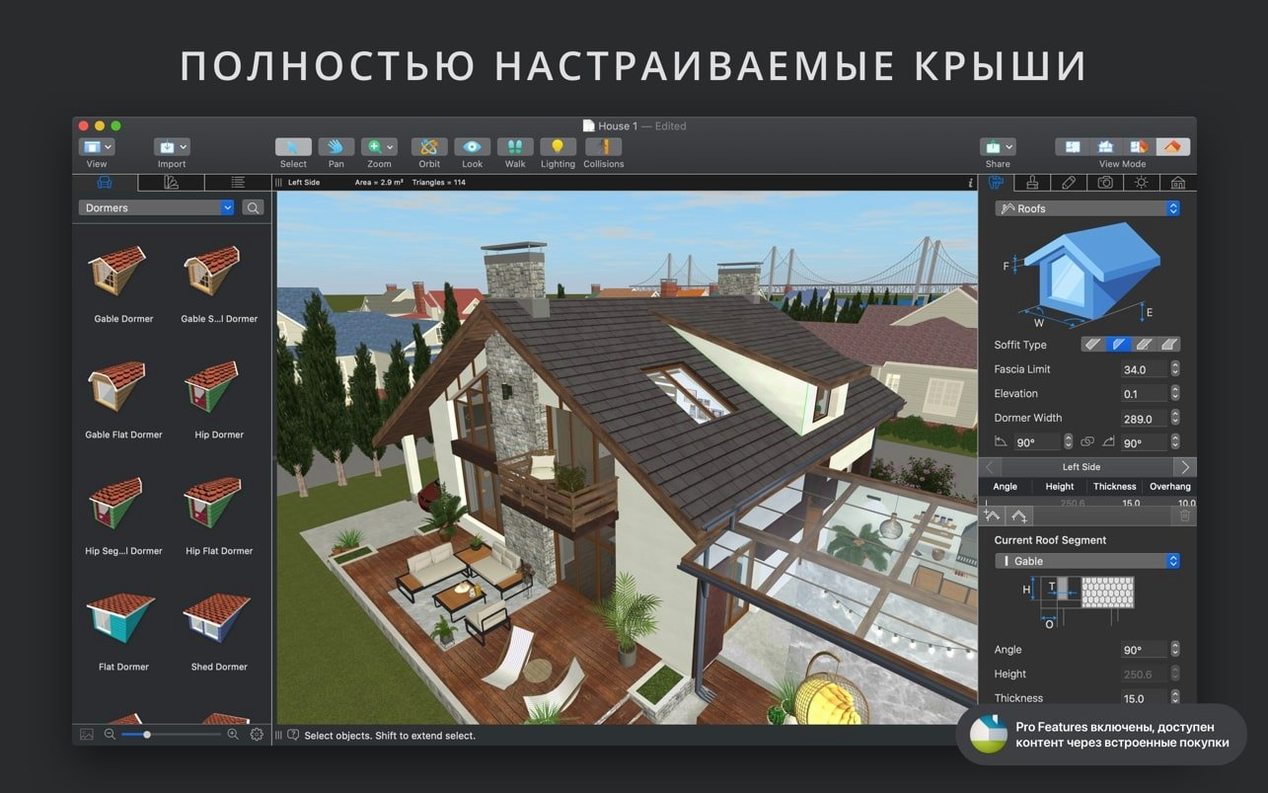
Roof won’t generate on a non-rectangular plan. The roof assistant handles L-shaped footprints but gets grumpy with curved exterior walls. Draw a flat ceiling manually, then use the custom roof tool for the tricky sections. It’s slower but precise.
iCloud sync stalls on a big project. After an hour of heavy editing, the sync indicator sometimes freezes. Save a copy locally, quit the app, reopen and re-enable iCloud. The local copy takes precedence, so you won’t lose work.
Walkthrough video exports with flickering shadows. Bump the shadow quality up one step and disable “auto-adjust exposure” in the render settings. The file size grows, but the flicker goes away.
What’s new
Fixes the problem with sharing standalone Pro app licensing.Requirements
- macOS 12 or later
- Apple Silicon and Intel Macs
- Interface: Russian, English, German, Spanish, Italian, Simplified Chinese, Ukrainian, French, Japanese
Comments 0
Sign in or create an account to leave a comment.
No comments yet…
If you’ve installed it, say how it went. Mention your Mac and macOS version — it helps the next person more than you’d think.