KeyShot for macOS
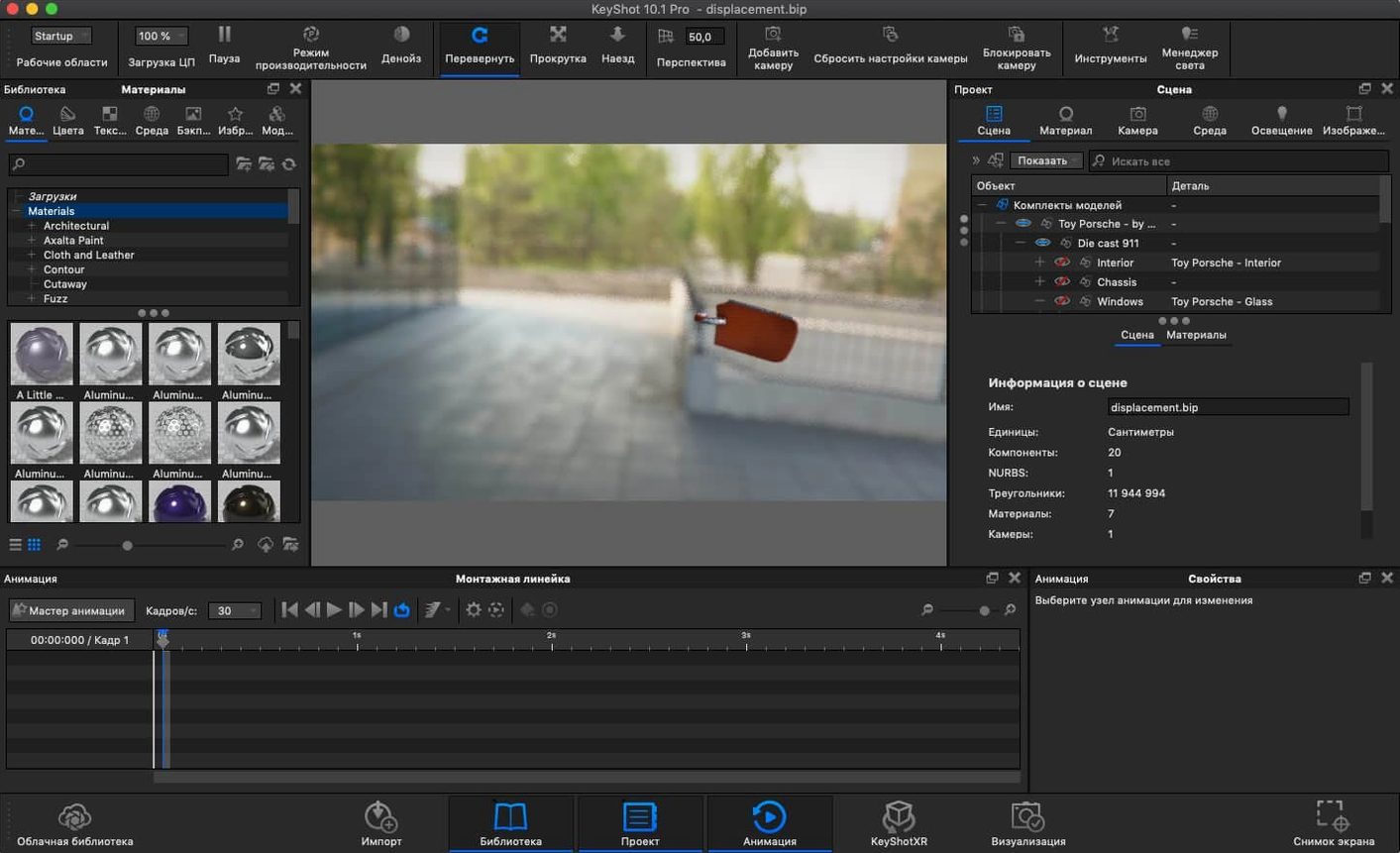
Description
Product designers, engineers, and 3D artists who need to show a model in the best possible light, quickly. That is who KeyShot for Mac is built for. It is a standalone 3D visualisation tool that also plays nicely with plugins for Maya, SolidWorks, Rhino and others.
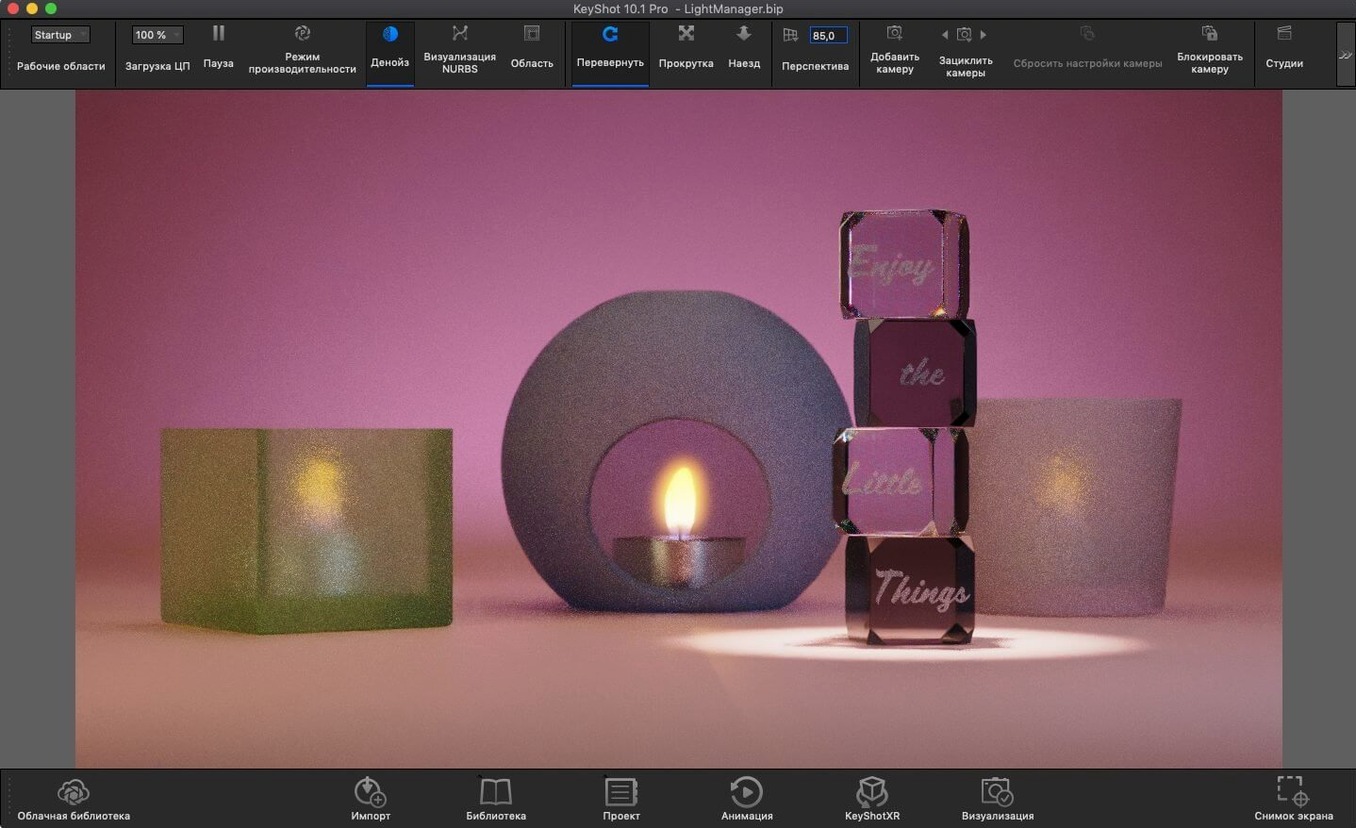
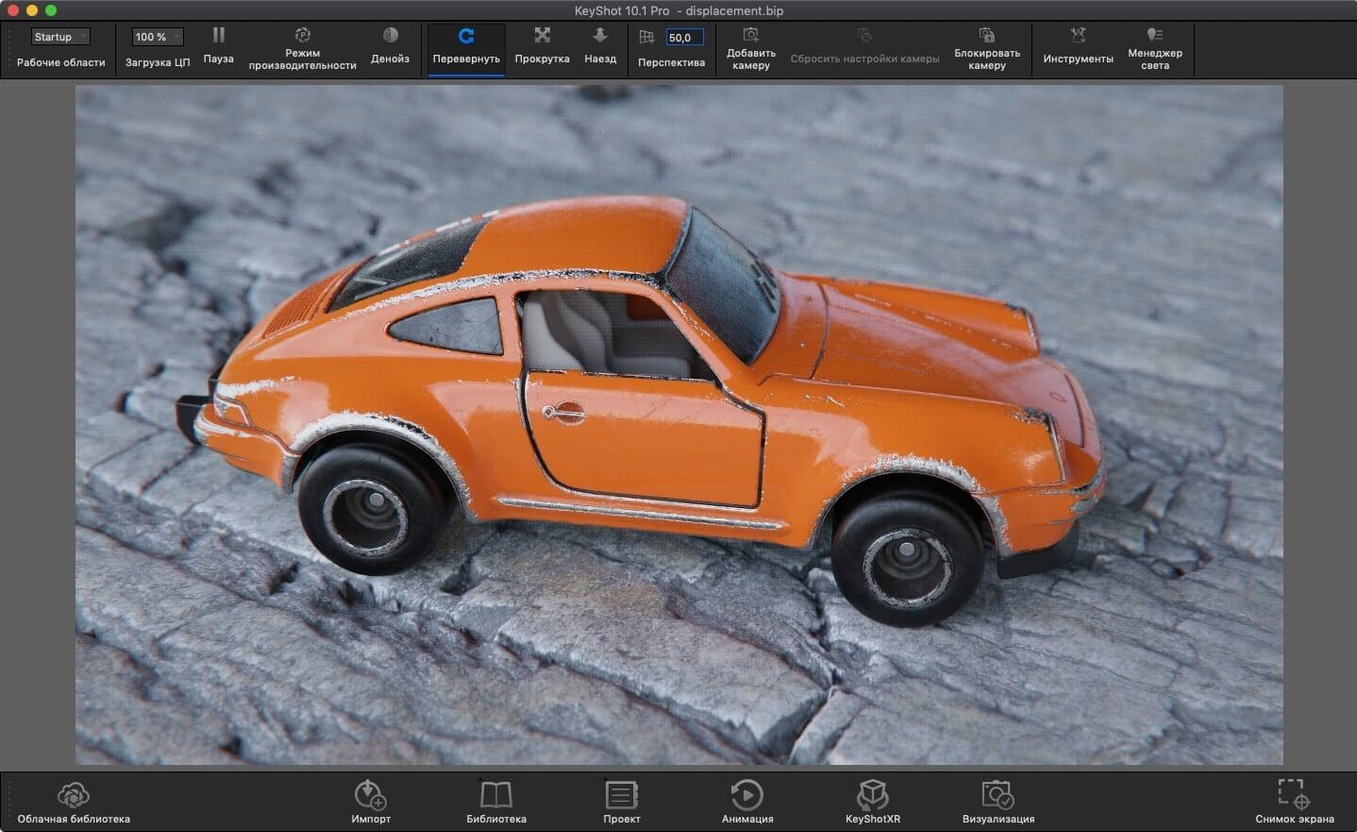
Watch materials and lighting update live in the WYSIWYG ray-traced viewport
- Seeing every material change and camera move update live. The viewport is WYSIWYG ray tracing, so you work directly on the final look.
- Lighting a scene without guesswork. The new Light Tool in 2025.1 lets you drag physical lights straight onto the model.
- Handling all the heavy optical effects—caustics, inter-object light bouncing, ambient occlusion—without dialling in a dozen separate passes.
- Runs natively on both Apple Silicon and Intel Macs.
Requires macOS 12 or later and now supports glTF export
- Requires macOS 12 or later. Worth checking if your studio Mac has been sitting on an older OS.
- Interface is available in twelve languages, including Polish, Japanese, and Simplified Chinese.
- New glTF export in this version makes it simpler to get assets out to real-time viewers.
Drop in a STEP file and the scene lights itself before you touch anything
You open KeyShot and drop in a STEP file from your CAD package. The geometry arrives clean. The real-time viewport lights it with the default studio HDRI before you touch anything—no blank grey canvas, no waiting.
Step 1. Pick a material from the library panel on the left. Drag it onto a part. The viewport updates immediately. Rotate the model with the middle mouse button while the material settles. You can see how the reflections bend across a curved surface before you commit.
Step 2. The new Light Tool speeds things up here. Tap the hotkey, then click anywhere on the model to place a Physical Light. Drag its aim point. A couple of spotlights from above-left and one fill from the right, and the model stops looking like a museum exhibit. You can see shadows sharpen or soften as you drag the light closer or further away.
Step 3. Switch to the Environment tab. Drop in a different HDRI. The whole scene adapts—sky colour bleeds into the metal, floor reflections pick up the new horizon. You might flip through four or five before settling.
Step 4. Add a ground plane with shadow catching turned on. Now the model has weight. Shadows pool underneath it. If the product has glass or clear plastic, this is the moment you check that caustics are showing on that ground plane and not just disappearing into space.
Step 5. You set up a few camera views—front, three-quarter, detail close-up—and save them in the Camera tab. Switching between them later is one click. If you are preparing a client review, you can queue these views for overnight rendering and walk away.
Step 6. Export. The new USDz and GLB formats in 2025.1 mean you can send a viewable model to someone who does not own KeyShot. They open it in a browser or AR viewer and spin it around.
That session, from import to export, might take fifteen minutes. Most of the time goes into decisions—which material, which angle—not into waiting for the software to catch up.
The Light Tool replaces menu-diving with click-to-place physical lights
The 2025.1 update is a quiet one, but two changes affect how you actually work.
The Light Tool replaces the old method of adding lights through a menu and then nudging them with transform gizmos. Now you click where you want the light and drag to aim. It sounds small. In practice it cuts the back-and-forth when you are lighting a complex assembly with multiple hotspots to balance.
The new Planar Light material turns any surface into an emitter. Before, you would model a separate light panel and position it. Now you can assign the material to an existing face—a ceiling panel in a room scene, say—and it just glows. This matters for interior visualisation work where architectural lights need to sit flush with geometry.
The export additions—USDz, GLB, glTF—are less about the rendering workflow and more about what happens after. Sending a model to a client who uses Apple's AR Quick Look now requires no conversion step. Export as USDz and email it. For real-time engines like Unreal or custom web viewers, GLB support removes a round-trip through another converter.
The Re-tessellate Tool addition to the Scripting API is the kind of thing most users will never touch directly. But it means studios with automated pipelines can now control mesh refinement from their own scripts, which is useful if you process hundreds of CAD files a week.
Push real-time max samples higher if your Mac has a decent GPU
Out of the box, KeyShot is tuned for a safe first render. A few changes make it better for daily use.
- Max samples in real-time mode. The default is conservative. Push it higher if your Mac has a decent GPU. You get less noise when you pause to inspect a detail, at the cost of a slightly slower framerate while orbiting.
- Ground shadows. Not on by default for every new scene. Turn on Ground Shadows in the Environment settings and check Shadow Catcher if you use a custom backplate. Otherwise your model floats.
- Output resolution presets. The render dialog defaults to screen size. Create a preset for 3840×2160 if you send images to print or to a marketing team that crops heavily. Doing it once saves the conversation later.
- HDRI brightness. Default environments are often a stop too bright for dark materials like black anodised aluminium. Drop the brightness slider half a stop and check your highlights. You will get more detail back in the dark areas without touching the material settings.
- Autosave. It saves the scene bundle, not just a thumbnail. Turn it on with a ten-minute interval. A crash during a long caustics calculation erases less work.
Over-lighting the scene because adding a Physical Light is now one click
New KeyShot users tend to trip over the same things, especially if they come from offline renderers that hide settings behind menus.
- Over-lighting the scene. Because adding a Physical Light is now one click with the new Light Tool, beginners throw in five or six lights before checking what the HDRI already provides. The result is flat, with no shadow definition. Start with just the environment. Add one light. Then decide if you need a second.
- Ignoring material roughness maps. Dragging a glossy plastic preset onto a part gives a uniform shine that looks synthetic. Real objects have slight roughness variation. Loading a subtle greyscale map into the roughness slot—even a noise texture—breaks up the reflections enough to fool the eye.
- Rendering at too few samples and sharpening later. If the image looks grainy, the answer is more samples, not a sharpen filter in post. Grain in KeyShot is the renderer admitting it has not traced enough light bounces. Doubling the samples doubles the time but gives you real detail, not artificial edge contrast.
- Forgetting the camera lens settings. The default camera is a perfect pinhole. Real product photography has a little depth of field. Turn on Depth of Field in the Camera tab, set the focal distance to the front edge of the product, and dial the aperture to f/2.8 or f/4. The background softens naturally and the product reads as an object, not a CAD model.
- Exporting to the wrong format for the job. A keyshot torrent mac download might get someone the software, but it will not teach them that USDz is for AR, GLB is for web viewers, and EXR is for compositing. Check
What’s new
- Adds a hotkey for Add Studio.
- Adds the Light Tool for placing Physical Lights directly in the scene.
- Adds Re-tessellate Tool support to the Scripting API.
Requirements
- macOS 12 or later
- Apple Silicon or Intel 64-bit Mac
FAQ
What can I connect KeyShot to?
It works standalone or as a plugin for ALIAS, AutoCAD, CATIA V5, Creo, Inventor, NX, Pro/ENGINEER, Rhinoceros, SketchUp, Solid Edge, SolidWorks, and Maya.
Comments 0
Sign in or create an account to leave a comment.
No comments yet…
If you’ve installed it, say how it went. Mention your Mac and macOS version — it helps the next person more than you’d think.