
Nook X for macOS

Description
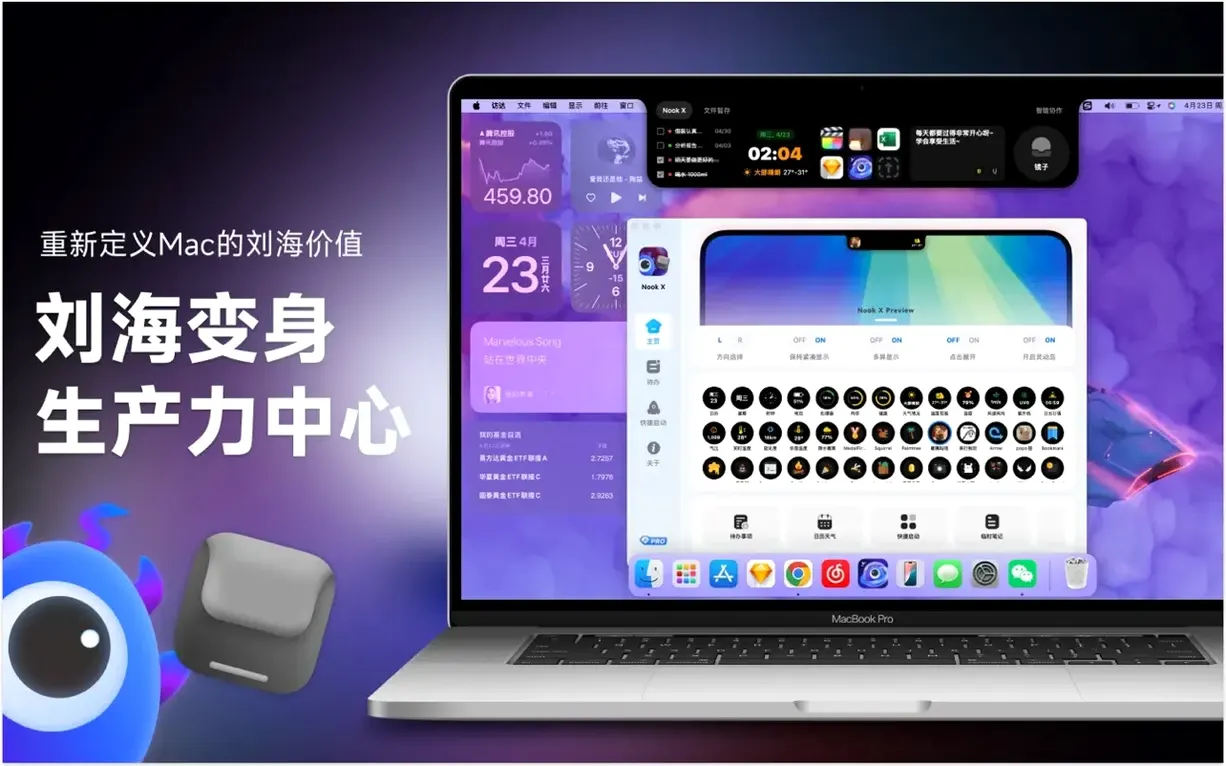
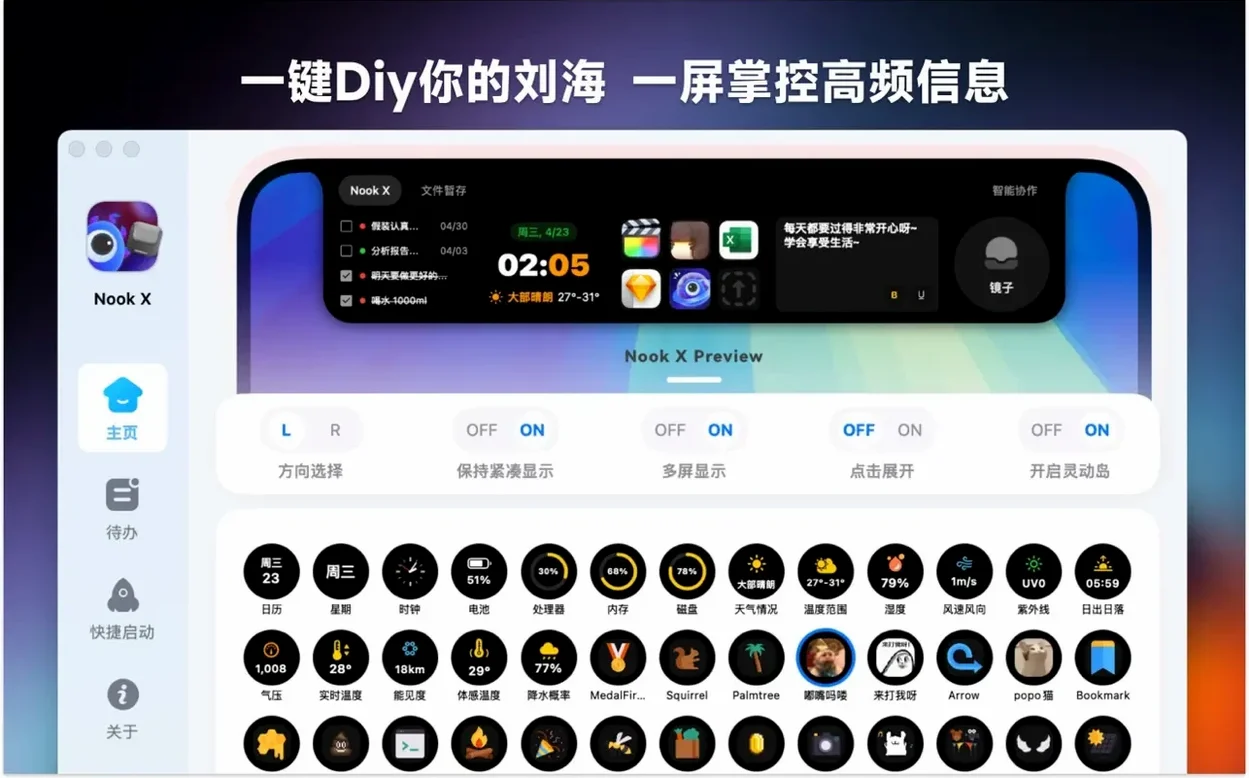
Notch utilities tend to do one thing. Nook X does three, so you don't end up with a menu bar full of single-purpose helpers. You get a to-do list, a music lyric finder, and an AI chat panel, all tucked into the notch on your Mac.
What does Nook X do?
It combines task management, a music player that fetches lyrics, and an AI assistant. You can search for songs by their lyrics rather than the title, which is useful when you only remember a line.
How does the task manager work?
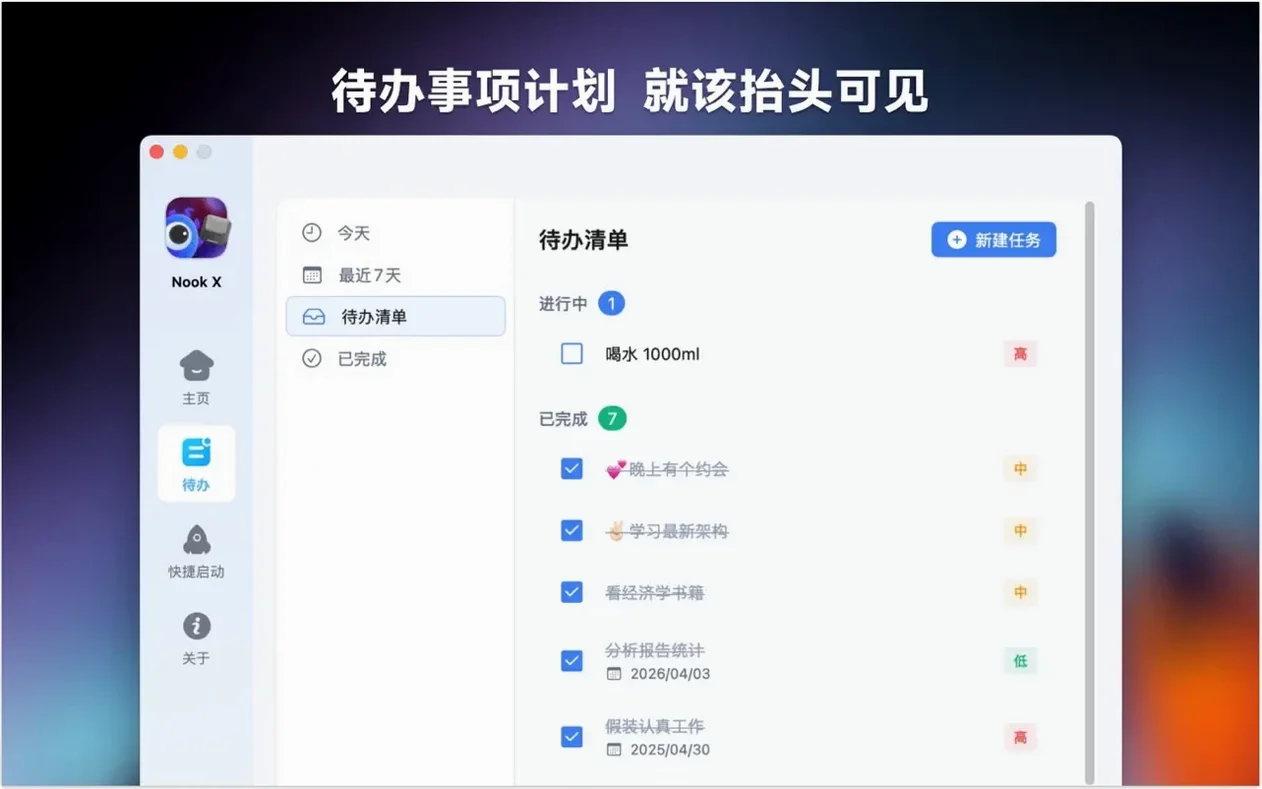
You create to-do lists with reminders and priorities. It sits alongside whatever project tool you already use, giving you a quick scratchpad that doesn't need a separate window.
Text from a chat becomes a task in one click
Nook X isn't really three separate apps bolted together. The pieces reference each other. You can highlight text from a chat answer and turn it into a task with one click. The music player sits beside your to-do list, so you can add a lyric line you like straight into a note or a task reminder. That cross-wiring is what makes nookx feel less like a grab-bag and more like a single scratchpad that happens to handle three jobs.
The app lives in your notch, which means it stays accessible without occupying dock space. Click the notch strip and the panel drops down; click away and it retracts. It coexists with macOS Stage Manager and Mission Control without inserting itself into your window-switching flow. If you use multiple Spaces, the panel follows the active Space rather than sticking to one desktop.
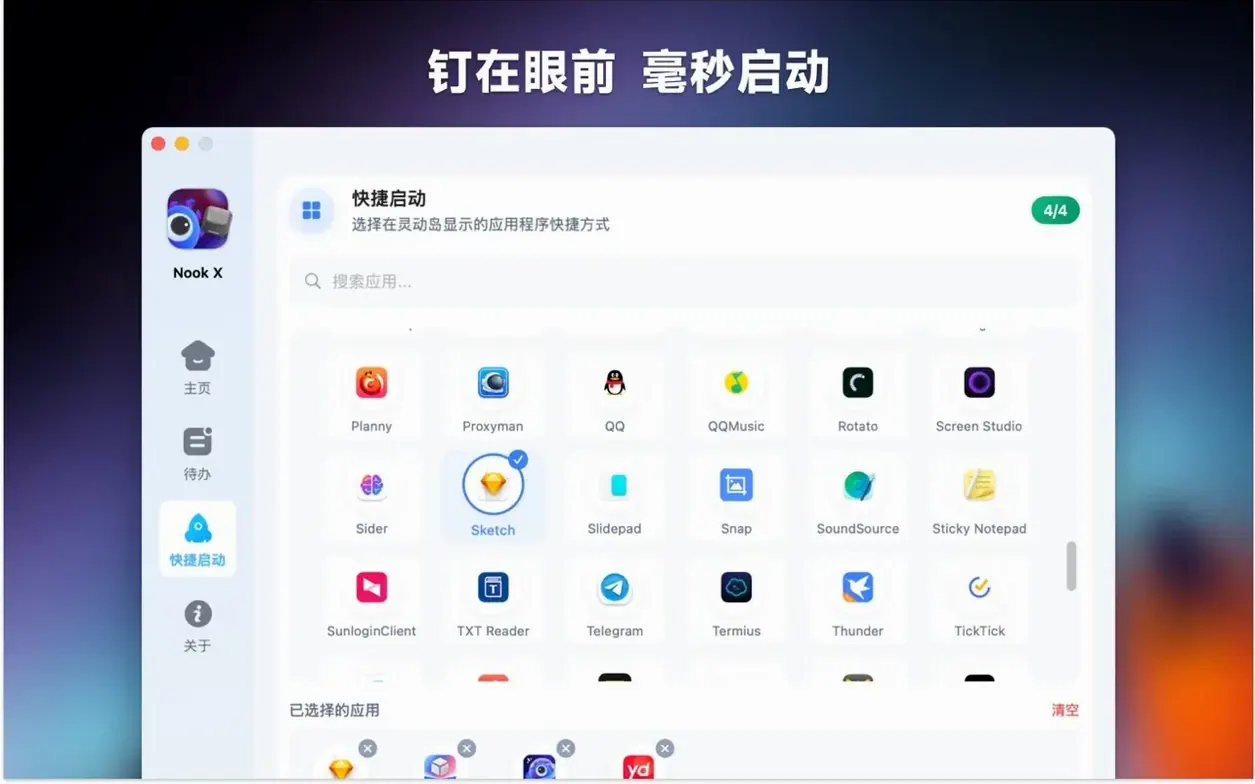
Spotlight integration is limited, but you can drag text selections directly from any app and drop them onto the Nook X notch strip. Dropped text lands in whichever module you last had open — chat, tasks, or the music search bar.
Type a song line to find a track, not just a title
A few things in nookx mac aren't obvious on first use:
- Lyric-driven search. If you type a fragment of a song line into the music tab, the app tries to match it against its lyric database, not just track titles. Useful when you remember "and the lights all went out" but not the band.
- Voice input. A small microphone icon sits in the chat bar. Click it, speak your query, and it transcribes. You don't need to grant extra permissions beyond what macOS already asks for microphone access.
- Karaoke mode. When a track plays, lyrics scroll in time. You can toggle it off if you just want a compact player bar.
- Priority badges on tasks. Right-click a task to assign high, medium, or low priority. The badge colour changes, which makes scanning a long list quicker.
- Chat-to-task conversion. Hover over any AI response and a small "Add to tasks" button appears. The response becomes a task item with the original chat context preserved in the task note.
These aren't hidden behind modifier keys or preference panes. They're just small UI cues that people often overlook because the footprint is so compact.
Things to check when the music library shows duplicates
macOS blocks the app on first launch
If you see the "unidentified developer" warning, head to System Settings > Privacy & Security and click Open Anyway. This is standard for apps distributed outside the Mac App Store. You only need to do it once.
Lyrics don't load for a track
The lyric database covers a lot, but not everything. If a track shows no lyrics, check that you have an active internet connection — lyrics are fetched live, not bundled with the app. If the song is obscure or a very recent release, the database may simply not have it yet. In that case, the player still works; you just won't see scrolling words.
Notch panel stays open when you want it gone
Click somewhere on the desktop, not on the panel. If it persists, clicking the notch strip again toggles it shut. Some users report that switching Spaces with the panel open occasionally leaves it visible; closing and reopening it fixes that.
Voice input doesn't pick up anything
macOS needs microphone permission. Go to System Settings > Privacy & Security > Microphone and make sure Nook X is toggled on. If you denied the prompt on first use, it won't ask again — you need to flip the switch manually.
How Nook X compares
Put nook x next to a few familiar Mac utilities and the differences are clear.
NotchNook. NotchNook is a general-purpose notch utility that adds a file shelf, media controls, and shortcuts. It doesn't include task management or AI chat. Nook X is narrower in scope but deeper in the three tools it does offer. If you want a media scrubber and a file drop zone, you'd pick NotchNook. If you want something that handles your quick to-dos and a lyrics-aware player, Nook X fits better.
MacGPT. MacGPT puts an AI chat panel in your menu bar. It does one thing — chat — and does it well, with support for different GPT models. Nook X's chat is simpler, but it's tied to the task manager. If you regularly turn chat outputs into action items, the combined approach saves you copy-pasting between two apps.
LyricsX. LyricsX is a dedicated lyric fetcher that works with iTunes, Music, and Spotify. It's more polished for lyrics alone — it floats a translucent window and matches tracks from multiple players. Nook X's lyric feature is less configurable but doesn't need a separate music app open. It plays files directly, which suits people who keep local music libraries rather than streaming.
The pattern is consistent: nookx mac app trades depth in any single category for having three things in one place. That's either exactly what you need or a compromise, depending on whether you value integration over specialisation.
It answers questions, translates text, and generates ideas. Think of it as a lightweight alternative to opening a browser tab for a quick query.
Requirements
- macOS 13 or later
- Apple Silicon or Intel 64-bit Mac
FAQ
Which macOS versions does it need?
It requires macOS 13 or later, running on both Apple Silicon and Intel 64-bit Macs.
What languages does the interface support?
Russian, English, German, Vietnamese, Indonesian, Spanish, Italian, Traditional Chinese, Simplified Chinese, Korean, Portuguese, Thai, French, and Japanese.
Can I find a song if I only know a few words?
Yes, Nook X supports searching for songs by lyrics rather than by artist or title.
Comments 0
Sign in or create an account to leave a comment.
No comments yet…
If you’ve installed it, say how it went. Mention your Mac and macOS version — it helps the next person more than you’d think.