iTubeGo for macOS
Description
People who spend a lot of time grabbing clips tend to end up here. Casual downloaders don't need 8K or batch queues, but someone building a media library does. iTubeGo is pitched at that second group.
How does the format conversion actually work under the hood?
You're not stuck with whatever the source file offers. You can pull the audio stream and save it as a standalone 320 kbps MP3, or grab the video in MP4 at the resolution you want, from 480p all the way up to 8K. The conversion happens locally after the download, so you pick the output spec once and it applies to the whole queue.
What quality options are there for video?
The resolution ladder runs from standard 480p through Full HD and 4K, topping out at 8K where the source provides it. You set a preferred ceiling and the app matches the closest available stream, which saves you from manually checking each link.
Is there anything that speeds up a large job?
The bulk downloader works through a list up to ten times faster than fetching links one by one. It's the difference between babysitting a queue all afternoon and letting a playlist process while you do something else.
Pasting multiple links at once and expecting instant downloads
Most early problems come from ignoring the download queue. People paste five links, hit download, then wonder why the app seems slow. It isn't slow — it's processing them in order. Let the queue run and check the progress panel instead of forcing a restart.
Another classic is choosing "best available" without checking what that means for the source. A 1080p YouTube clip doesn't magically become 8K. iTubeGo grabs the highest stream the site offers, so set your ceiling based on what you actually need. Grabbing 4K files for a phone screen wastes drive space and time.
Beginners also overlook the audio-only option. If you only want the song from a video, converting to MP3 at 320 kbps is cleaner than downloading the full MP4 and stripping it later. It saves a step and keeps your library tidy.
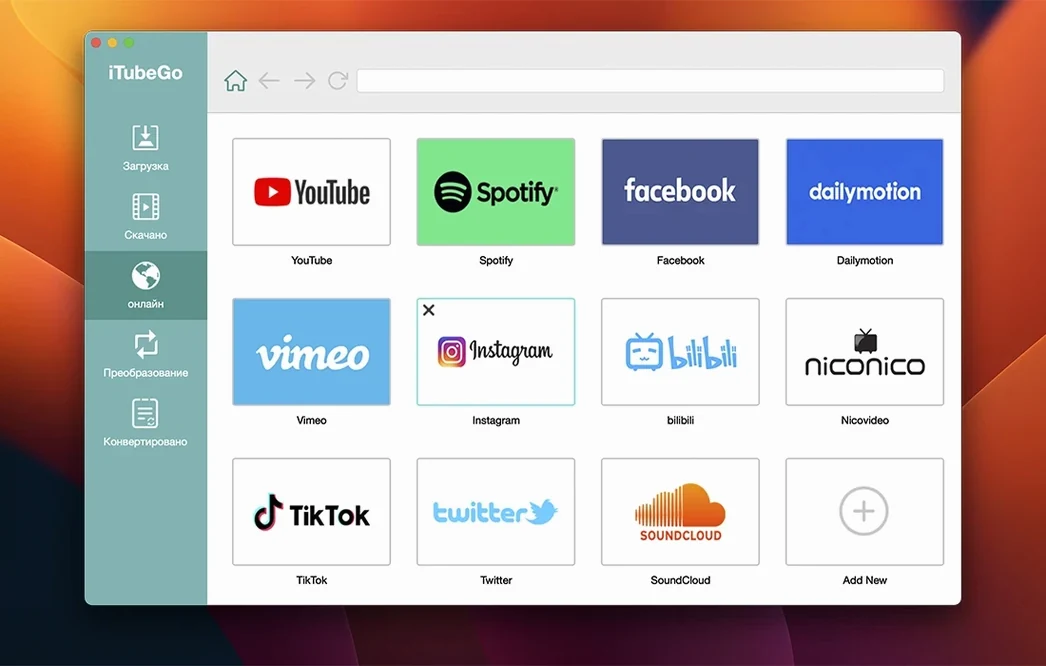
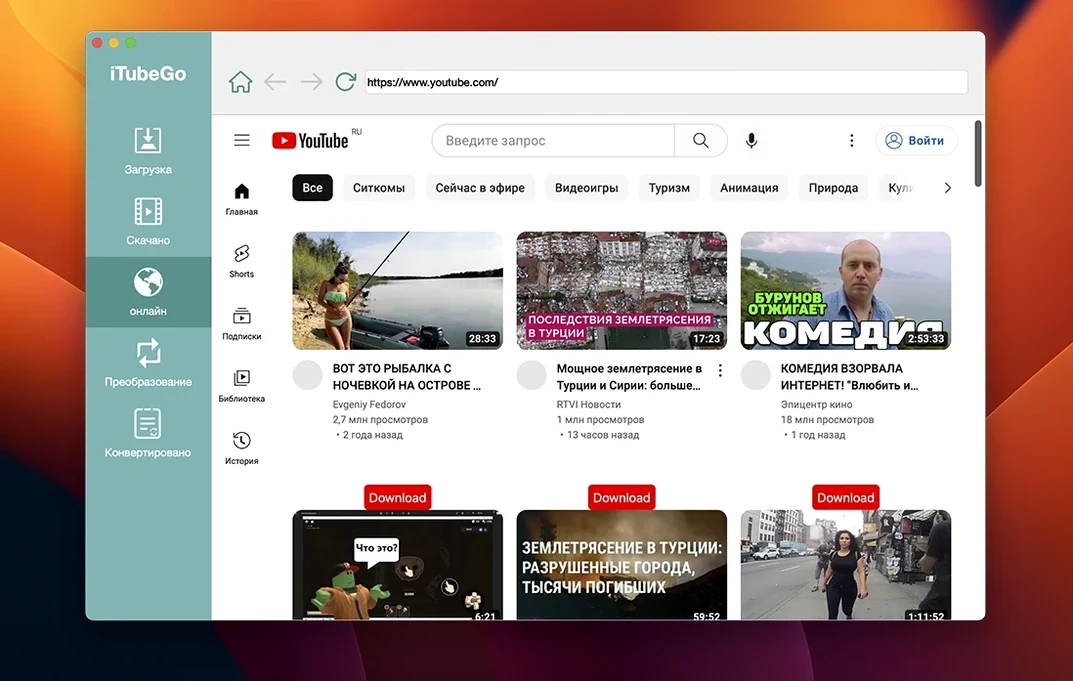
The built-in browser confuses some people at first. It's not meant to replace Safari or Chrome — it's there so you can browse a site, spot a video, and send it straight to the download list without copying URLs back and forth. Use it for that, not for general browsing.
One more: ignoring the Gatekeeper prompt. macOS may block the opener on first run. The installer notes cover this — run the opener, press Enter in Terminal when asked, then drag the app into Applications. Skipping that step leads to a non-launching app and a lot of unnecessary reinstalling.
Your Intel Mac from 2013 can still run this
Will this run on my Mac? If you're on OS X 10.10 or later on an Intel Mac, yes. The current build is 10.15.0 and it's x86 64-bit, so older machines aren't left out. Apple Silicon Macs run it through Rosetta in most cases, but the listed architecture is Intel.
Does it only work with YouTube? No. The app lists support for over 10,000 sites, including Facebook, Instagram, Dailymotion, Vimeo, TikTok, and several adult platforms. If you're grabbing from a music site, MP3 extraction works there too.
Is the conversion quality any good? The MP3 extraction tops out at 320 kbps, which is the highest commonly used bitrate. Video output depends on the source — you'll get 8K only if the site serves it. The app doesn't upscale, which is what you want.
Can I queue a whole playlist? That's where the bulk downloader earns its keep. Paste a list or let the browser grab multiple links, and the queue processes them in one go. The ten-times-faster claim applies to bulk jobs, not single videos.
A workflow: saving a conference talk as audio
Say you've found a two-hour panel discussion on YouTube and you want it as an MP3 for a long train ride. Here's one way through it.
- Open the built-in browser and navigate to the video page. Watch for the download button to appear near the clip.
- Click it and choose Audio as the output format. Set the bitrate to 320 kbps if the source allows it; otherwise the app picks the closest match.
- Add the link to the queue. If you have several talks from the same channel, paste the rest now — the batch settings apply to all of them.
- Start the download. The MP3 lands in your chosen folder, named from the video title, with no extra conversion step needed.
- If macOS blocks the app on first launch, run the Gatekeeper opener from the disk image, press Enter in Terminal, then drag iTubeGo into Applications and start it. The whole thing takes under a minute.
For video-only jobs — say a 4K drone reel you want offline — the same flow applies, just pick MP4 and set the resolution ceiling to 2160p. The app handles the format mapping from there.
Requirements
- macOS 10.10 or later
- Intel (x86 64-bit) Mac
FAQ
Which Macs can run it?
It needs an Intel Mac running OS X 10.10 or later. Apple Silicon isn't listed as native.
What audio quality can I extract?
You can pull audio from any supported video and save it as an MP3 at up to 320 kbps.
Which interface languages are available?
The app includes Russian, English, German, Vietnamese, Indonesian, Spanish, Italian, Traditional Chinese, Simplified Chinese, Korean, Portuguese, French, and Japanese.
Comments 0
Sign in or create an account to leave a comment.
No comments yet…
If you’ve installed it, say how it went. Mention your Mac and macOS version — it helps the next person more than you’d think.