CorelDRAW for macOS
Description
8 GB of RAM is the floor, but 16 GB is where CorelDRAW 27.2 starts to feel comfortable on a Mac. Apple Silicon or a multicore Intel with AVX2 will do, as long as macOS 13 or newer is in place.
A typical job moves through four stages:
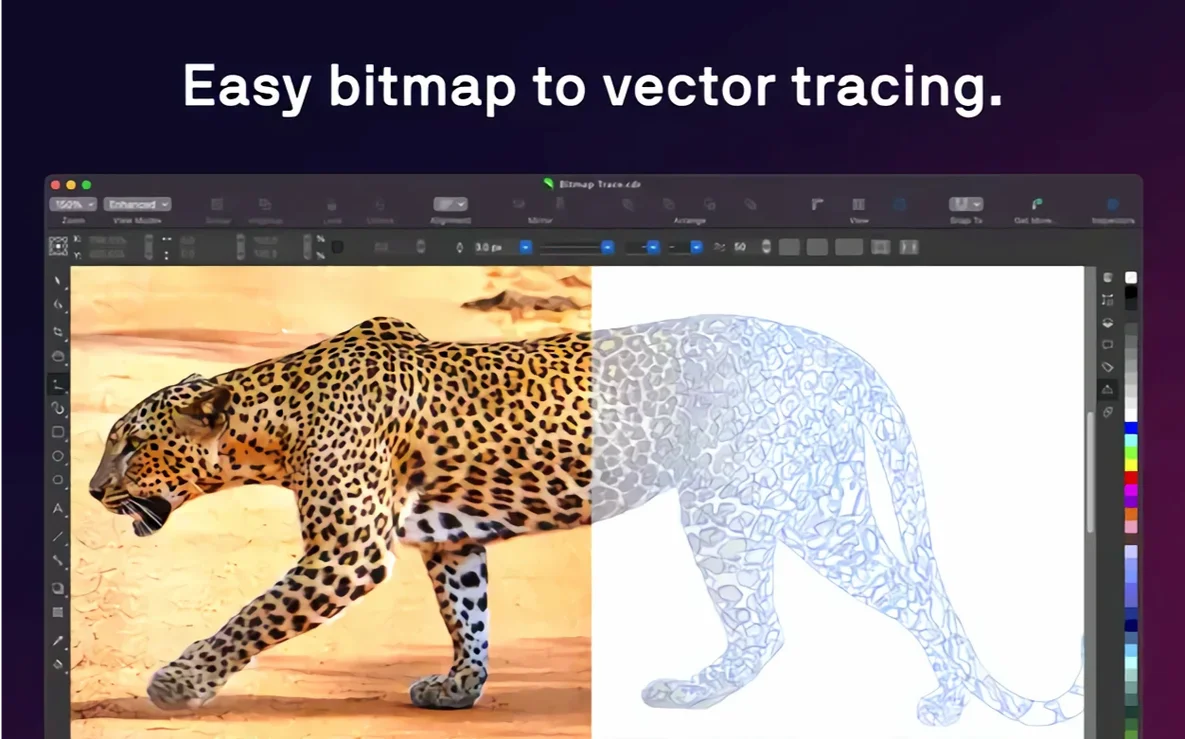
- Trace a scan or rough sketch with raster-to-vector conversion, then tidy the paths.
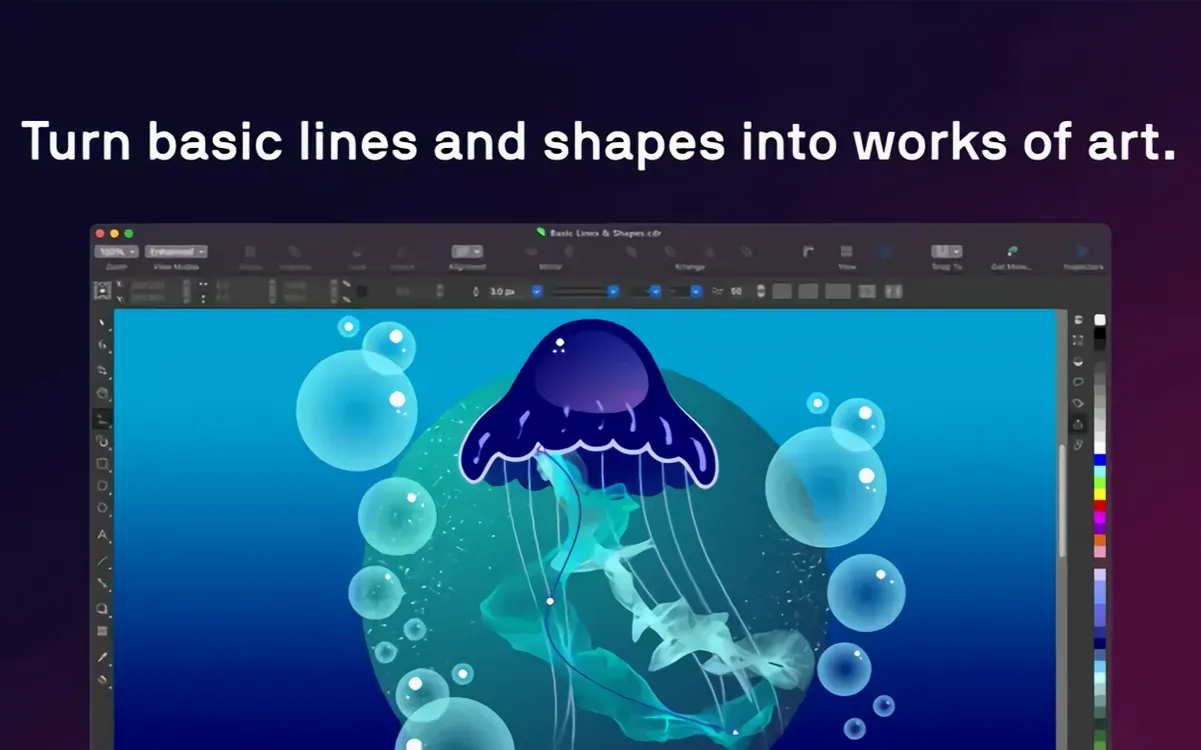
- Set up fills, gradients and patterns. Transparency and outline colour stay live so changes ripple through without repainting everything.
- Pull in photos for retouching. The AI tools handle JPEG artefact removal and upscaling without sending files anywhere.
- Apply styles and style sets to bring headings, body text and recurring objects into line. Variable fonts help when a title needs to sit slightly narrower.
What stayed the same: the mix of vector and raster effects, the page-layout tools, and the general sense that this is one application doing the work of three. Nothing in this release changes that. It remains available for Windows, Mac and web, and runs on both ARM and x86 64-bit builds.
Tracing a logo sketch and building a trifold from phone photos
Imagine a two-person print shop. A customer emails a rough logo sketch, a handful of phone photos, and a Word document with the text for a trifold brochure. Deadline is Thursday.
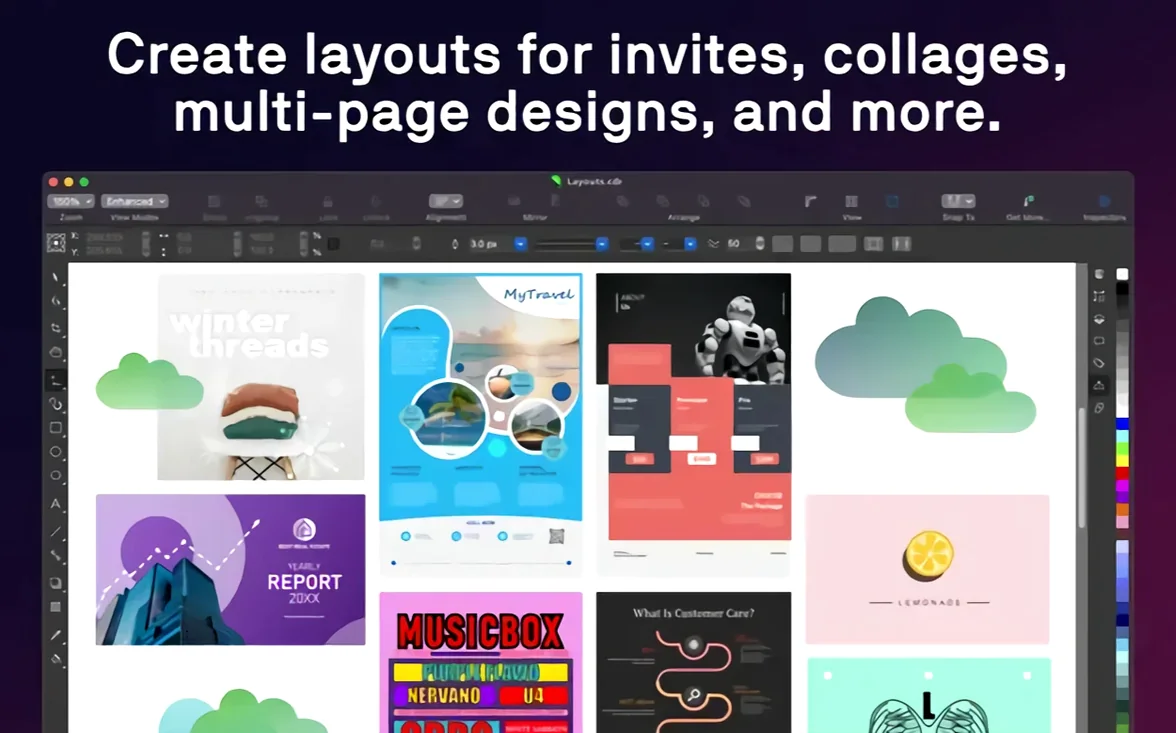
The designer opens CorelDRAW, traces the sketch into vectors, and cleans the curves with the Shape tool. The photos go into Corel PHOTO-PAINT for a quick levels tweak and JPEG artefact removal — the AI upscaler turns a 1200-pixel product shot into something that won't pixelate at print size. Back in CorelDRAW, the brochure layout uses master pages and style sets so both sides of the trifold stay consistent. Variable fonts let the headline fit the panel width without manual kerning. Thursday morning, the job is ready for PDF export.
What makes this workflow stick isn't one killer feature. It's that the tracing, photo retouching and multi-page layout all happen without switching applications. For a small shop where every minute costs money, that matters.
Lock in a colour preset before your first export
CorelDRAW is not a slim tool. Spending an hour on setup saves five hours of frustration later.
Sort out the colour management early. Open Preferences, go to Colour Management, and pick a preset that matches your output — sRGB for screen work, or a CMYK profile for print. CorelDRAW defaults to a generic RGB space that may not match what your printer expects. Setting this wrong means colours shift between screen and paper, and fixing it afterwards means re-sampling every fill and outline.
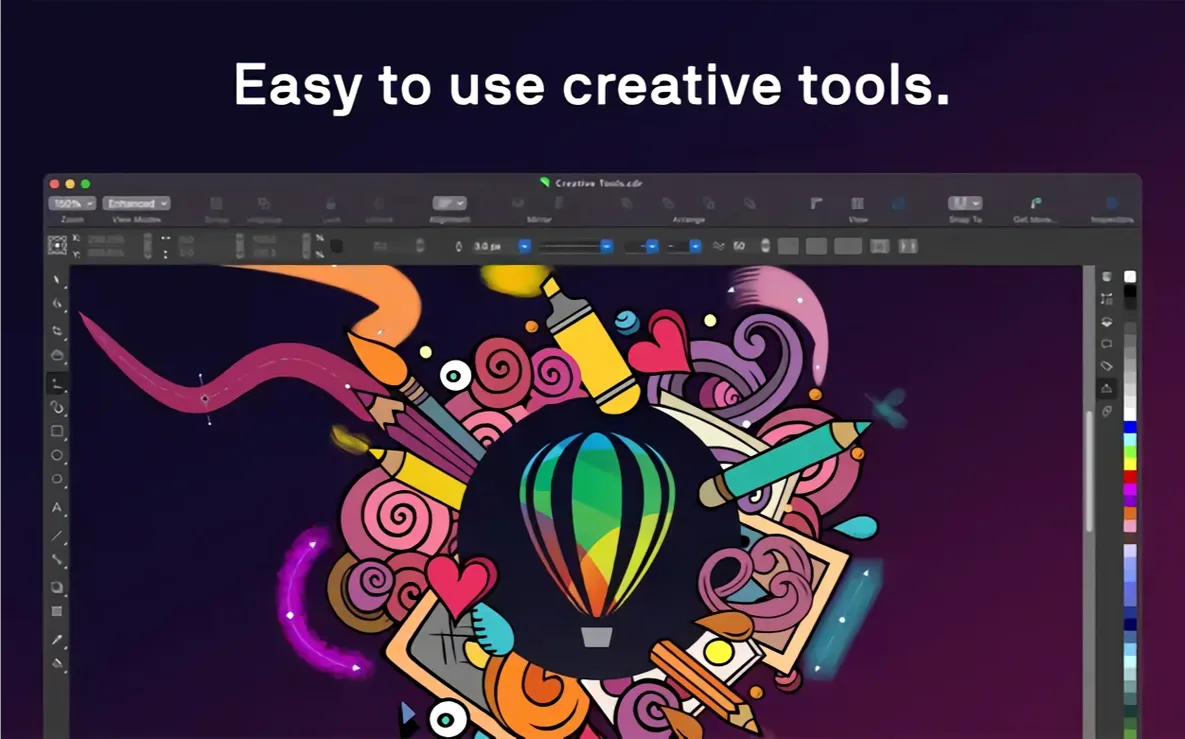
Build a workspace you recognise. If you came from another vector app, right-click the toolbar area and customise. Drag the tools you use most — Shape, Fill, Transparency, Outline — into a single floating palette. Ditch the panels you never touch. Save the workspace under a name you will remember. Mac users with a Touch Bar can assign layer visibility and text formatting to it from the Customise menu.
Tell the autosave where to live. CorelDRAW's backup folder sits in the application's preferences. Point it to a cloud-synced folder or an external drive. The default is buried in the user Library, and macOS does not always surface it in Spotlight. Losing a day's work to a crash is bad. Losing it because you could not find the backup is worse.
Install the font manager properly. Corel Font Manager ships with the suite. Open it once and let it index your system fonts. It handles activation and deactivation without bloating the macOS font cache. If you use a font manager already, pick one and stick with it — two managers fighting over the same font database causes missing glyphs and crashes on export.
Text turns to outlines during PDF export
Every application has its sharp corners. These are the ones that generate help-desk tickets.
Exporting to PDF and watching text turn into outlines. This happens when the "Convert text to curves" box is ticked in the PDF export dialog. It is on by default in some presets. If you need searchable text, uncheck it before exporting. If the printer demands outlined text, leave it checked and keep a copy of the live-text CDR file for yourself.
Linked images breaking after a file move. CorelDRAW stores image links as absolute paths. Move the CDR file to a different folder, or rename a folder in the path, and the link breaks. A red X appears where the image was. Fix it with the Links docker: select the missing image, click Relink, and point to the new location. Better yet, use relative paths from the start — it is an option in the Save dialog under Advanced.
Transparency flattening on older RIPs. Print shops running older raster image processors choke on live transparency. The fix is to flatten transparency at export, but doing it too early bakes effects into pixels that cannot be edited later. Keep a layered master, and only flatten when you generate the final print PDF. The Export dialog has a Compatibility setting for this.
Fonts that look fine on screen but substitute on someone else's machine. Variable fonts are brilliant until they are not. Not every system supports them, and not every PDF viewer renders them correctly. When sharing CDR files with collaborators, either stick to static OpenType fonts or embed everything in the PDF. Corel Font Manager can collect fonts for output from the File menu.
Opening layered PSD files with editable text intact
CorelDRAW is not an island. Most people use it alongside other tools, and the Mac version has specific integrations worth knowing.
Adobe file exchange. AI and PSD import is solid for flat files. Layered PSDs come in with editable text and adjustment layers intact, though smart objects rasterise on import. For AI files, stick to versions saved without PDF compatibility turned on — the dual-format AI files sometimes confuse the parser. EPS import handles legacy print archives cleanly. Exporting to AI from CorelDRAW works for outlines and fills, but gradients may simplify in translation.
Sidecar and the Apple Pencil. On an iPad running Sidecar, CorelDRAW recognises the Apple Pencil as a pressure-sensitive input. The Pencil tool and Calligraphy tool both respond to tilt and pressure. It is not a full iPad app, but for tracing or freehand drawing while seeing the result on a larger Mac screen, it works. Latency depends on your Wi-Fi, not on CorelDRAW.
Finder and Quick Look. macOS does not preview CDR files in Quick Look by default. CorelDRAW installs a Quick Look plug-in that generates thumbnails in Finder and previews on the space bar. If thumbnails stop appearing after a macOS update, re-run the installer or drag the Quick Look component into the Library folder manually.
Automation with Shortcuts and Automator. CorelDRAW does not ship with Shortcuts actions, but you can script repetitive file conversions with Automator using the command-line export tools bundled in the suite. Batch converting CDR files to PDF or TIFF is a one-off Automator workflow that saves a morning of clicking.
Drawing on a letter-sized canvas without fixed resolution
New users tend to trip over the same things. Spotting them early makes the learning curve shallower.
Working at the wrong scale. CorelDRAW's default page is a letter-sized canvas, but vector objects have no fixed resolution. Beginners often draw a logo at postage-stamp size and then scale it up 500% for a banner. The shapes stay sharp, but stroke widths, dashed lines and pattern fills do not scale proportionally unless "Scale with object" is ticked. Turn it on in the Transform docker before resizing.
Ignoring the Object Manager. The Object Manager docker is not just a layer list. It shows every object on every layer, including groups, effects and masks. Beginners who ignore it end up selecting the wrong thing, applying fills to groups instead of objects, and wondering why nothing changes. Open it, name your layers, and use the right-click menu to isolate objects.
Too many bitmap effects stacked on one object. Drop shadow, bevel, lens flare and a transparency on the same shape looks impressive until the file takes thirty seconds to redraw. Raster effects render in sequence, and the render stack is not always efficient. Flatten effects to a bitmap when the design is final, or split complex objects across layers and hide what you are not editing.
Not checking the colour mode on import. Dragging an RGB photo into a CMYK document does not automatically convert it. The colours look wrong on screen and worse on print. Use the Bitmap menu to convert imported images to the document colour space before doing any colour-critical work.
Saving everything as version 27 files without backward compatibility. If a colleague runs an older version, they cannot open the file. CorelDRAW can save to older formats, but some newer effects and variable font settings do not survive the downgrade. Check what version your collaborators use and set the Save As format accordingly.
Requirements
- macOS 13 or later
- 8 GB RAM minimum, 16 GB recommended
- Apple Silicon or multicore Intel with AVX2
- Supports ARM and x86 64-bit
FAQ
Does CorelDRAW for Mac run on Intel processors?
Yes, it supports Apple Silicon and multicore Intel Macs with AVX2, both as 64-bit builds.
Comments 0
Sign in or create an account to leave a comment.
No comments yet…
If you’ve installed it, say how it went. Mention your Mac and macOS version — it helps the next person more than you’d think.