
Compressor for macOS
Description
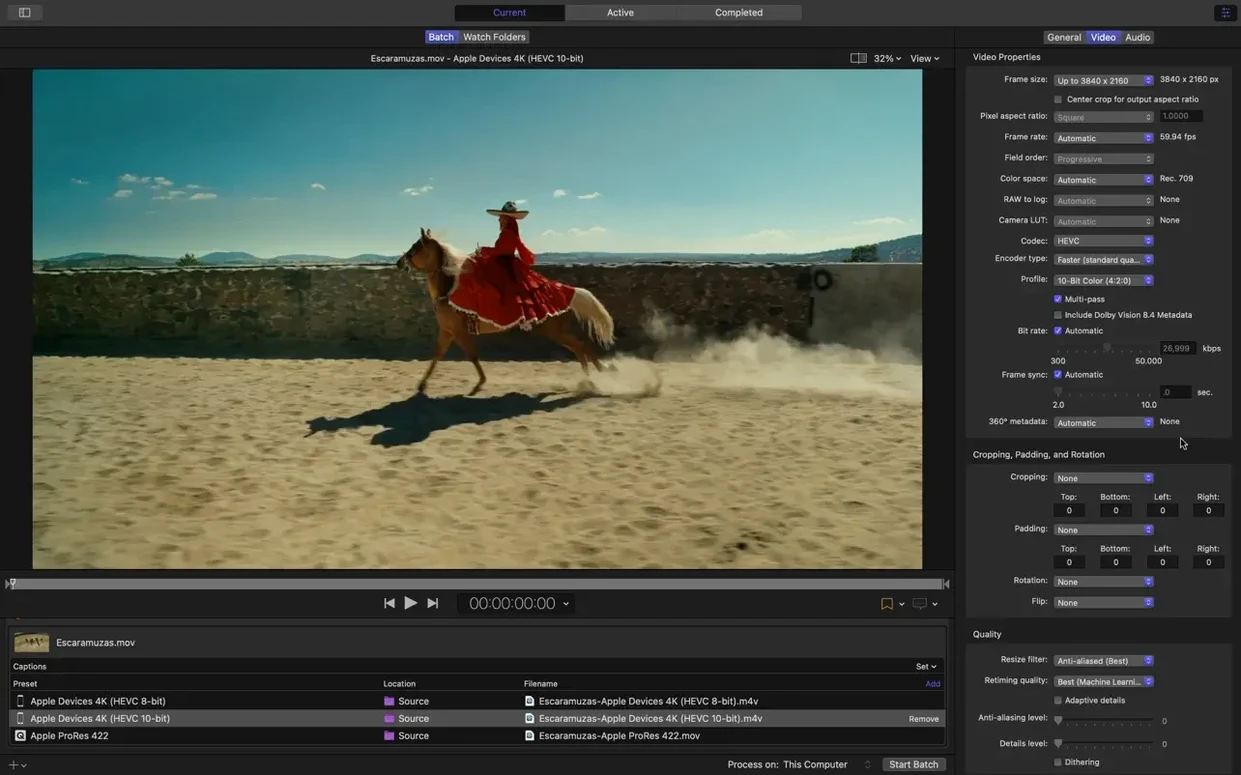
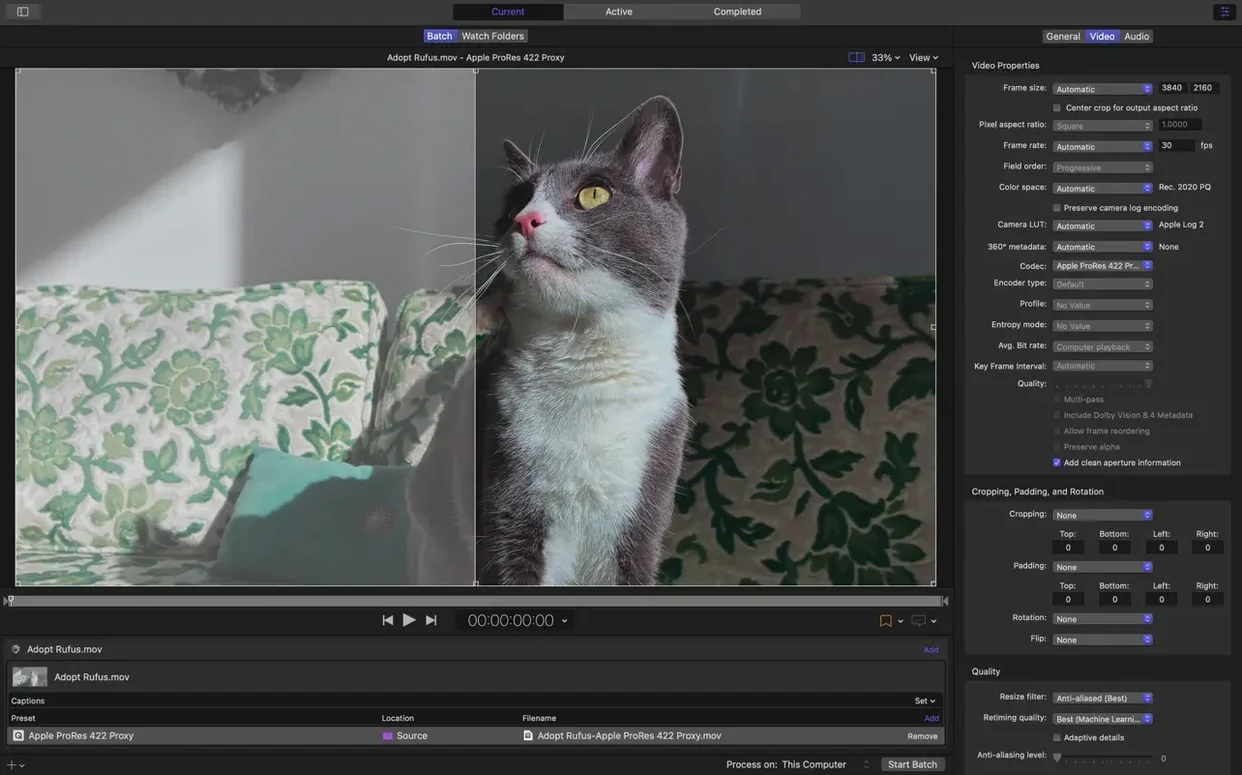
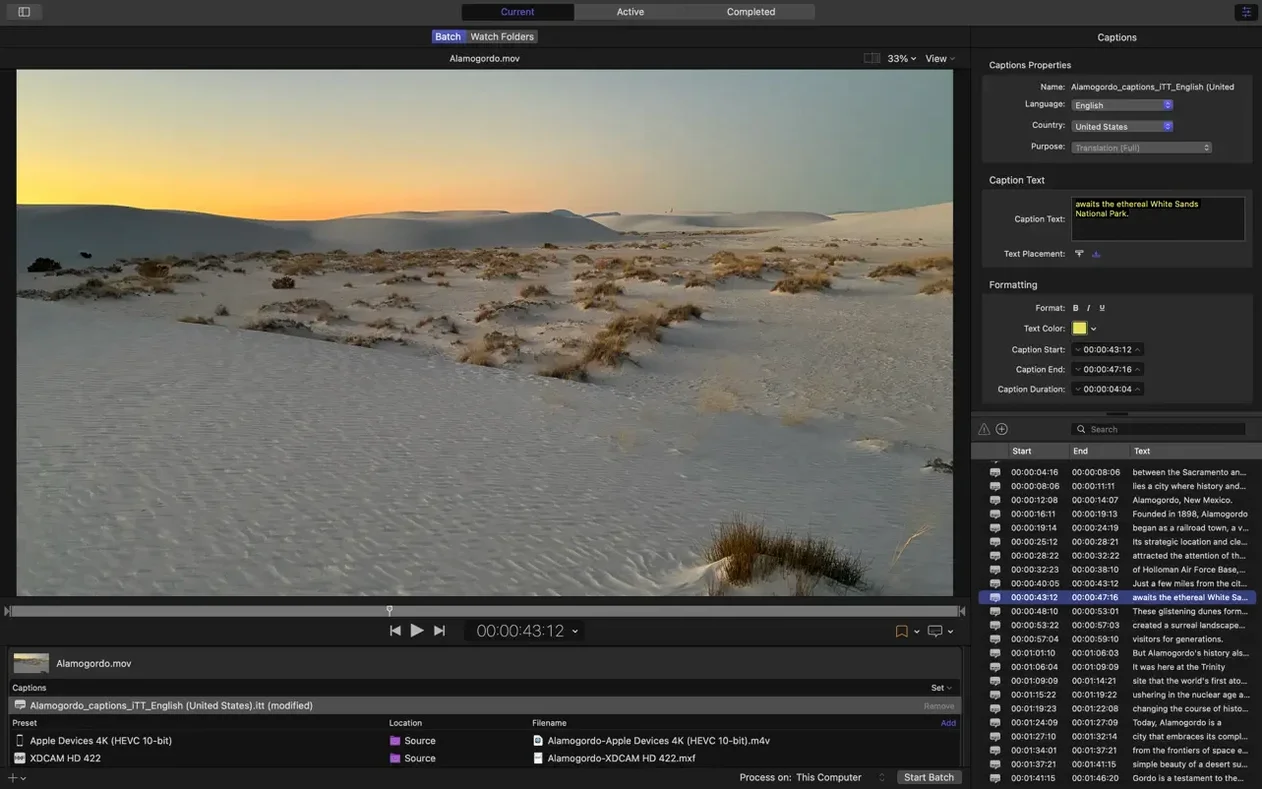
Compressor is built for video editors who finish in Final Cut Pro, motion graphics artists working in Motion, and anyone who needs to transcode batches of media without tying up their main editing machine. It uses the same rendering engine as those apps, so what you see in your timeline matches the output.
Direct Final Cut Pro and Motion transcode route
- Final Cut Pro and Motion users who want a direct send-to-transcode route.
- Studios handling HDR, HEVC, 360° video, or MXF delivery formats.
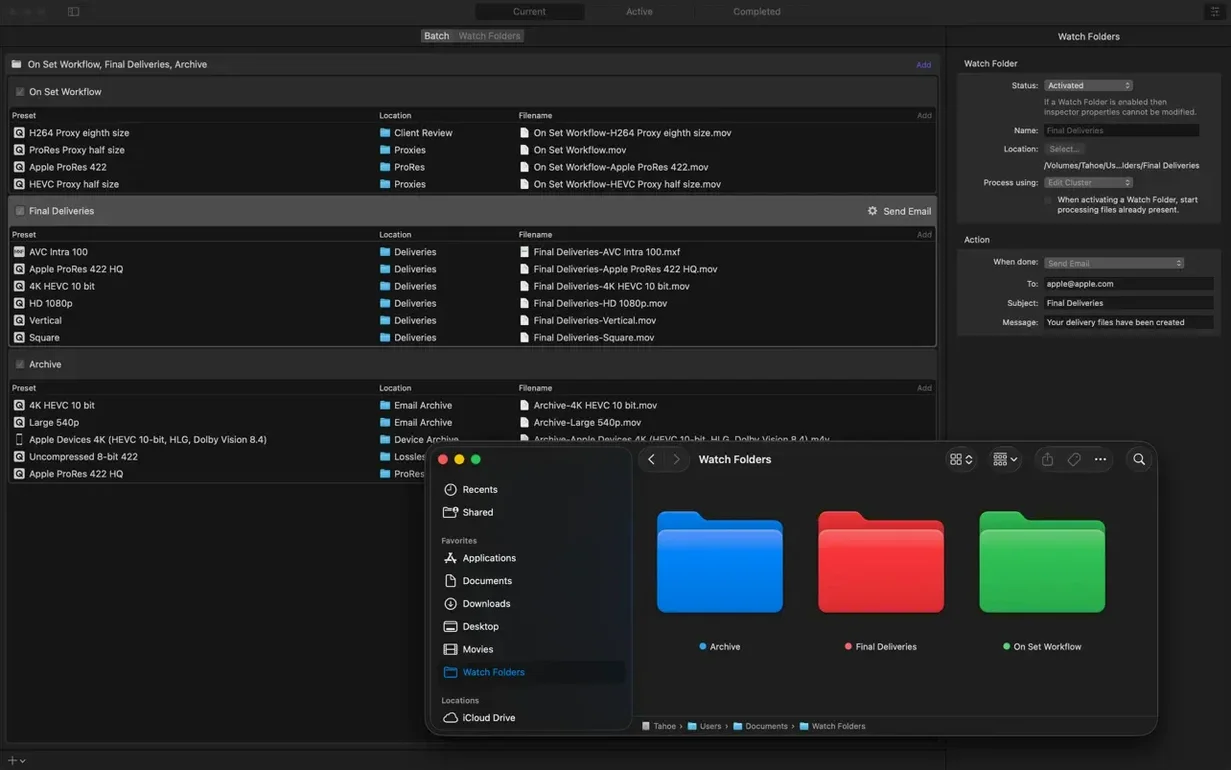
- Automating post-encode tasks — email a file, copy it to a server, or run a custom script as soon as encoding finishes.
- Leveraging hardware H.264 and HEVC encoders on Apple silicon for faster turnaround.
Queue and presets window, not an all-in-one suite
- It's a companion tool. You need Final Cut Pro or Motion for it to make full sense in a workflow.
- The interface can feel sparse if you're used to all-in-one encoding suites. It's a queue, presets, and settings — nothing more.
- It demands a recent macOS. Version 5.3 requires macOS 15.6.
Jobs stuck on 'Waiting' after losing the destination folder
A queue item sits there with "Waiting" and never starts. Usually the destination folder no longer exists or a network share has dropped. Double-click the job, check the Location path near the bottom of the General tab, and point it somewhere valid. If that's not it, pause and resume the queue — the render engine sometimes needs a nudge after a Mac wakes from sleep.
Distributed encoding doesn't see other Macs on the network. They all need the same version of Compressor, the same macOS point release, and Apple Remote Desktop turned on in Sharing preferences. The helper machines also need to be awake and logged in — headless Mac minis without auto-login won't pick up work.
Audio downmixing surprises people. Dropping a 5.1 source into a stereo preset doesn't always mix the LFE channel the way you'd expect. In the inspector, open the Audio tab and check the downmix matrix. The defaults are sensible for broadcast but not for every situation.
Anaglyph preview shows a red-cyan mess instead of depth. You need an actual pair of red-cyan glasses, and the preview option only works on stereoscopic sources that Compressor recognises as such. If your clip was shot dual-lens but doesn't carry the right metadata, mark it manually in the Job inspector under Stereoscopic Properties.
Tick 'Allow post-encode actions' so scripts actually fire
- Enable post-encode actions globally. Preferences > Advanced > "Allow post-encode actions." Without this ticked, that clever script you assigned to a preset won't fire — and Compressor won't warn you.
- Set the output destination for new jobs. By default it dumps files into the source folder. That gets messy fast. Pick a dedicated "Compressor Output" folder so you always know where transcodes land.
- Raise the data rate limit for HEVC on Apple silicon. The hardware encoder applies a conservative cap unless you override it in the Video inspector. Turn off "Apply data rate limit" if quality matters more than file size for a specific job.
- Switch the default channel for audio passthrough. Some presets re-encode audio when they don't need to. In the Audio inspector, set channels to "Pass through" for sources where you trust the original mix.
One timeline render feeds a ProRes master, H.264 review, and HEVC upload
Final Cut Pro editors delivering to multiple formats. If you need a ProRes master, an H.264 review copy, and an HEVC upload version from one timeline, Compressor's "Send to Compressor" route saves exporting three times. The FCP timeline renders once, and Compressor spins off the variants.
Small post houses without a dedicated transcode station. You can pile up jobs during the day and let them run overnight on a single Mac. If you do have a second machine, shared encoding across two or three Macs on the same network cuts turnaround noticeably for long-form work.
Motion users dealing with 360° or immersive video. The 180° Apple Projected Media Profile output and the new immersive metadata viewer in 5.3 give Motion artists a route to spatial formats without leaving Apple's ecosystem. If you're making content for Apple Vision Pro, Compressor now handles immersive sources that lack separate WAV files — fewer steps before you can preview.
Inspect spatial video metadata tags before encoding
The immersive metadata viewer introduced in 5.3 is a practical addition. Before encoding a spatial video, you can inspect the metadata tags directly in Compressor's window rather than digging through source files or waiting for a test encode to verify orientation and field of view. One less trip to the finder.
180° Apple Projected Media Profile output means you can now encode monoscopic 180° material in the format Apple expects without building a custom preset. That used to require matching resolution, projection type, and container settings by hand.
The anaglyph preview option is niche but useful if you're delivering stereoscopic video and want a quick sense-check of depth alignment. It's a preview toggle, not a render mode — you still export your normal stereoscopic output, but you can spot left-right mismatch before you commit.
On Apple silicon Macs, the HEVC data rate limit toggle gives you back control. Earlier versions capped hardware-encoded HEVC at a ceiling that occasionally softened high-motion scenes. Now you can lift that cap per job in the Video inspector when the preset's defaults feel too cautious.
The 5.1 AAC option in Apple Device settings tidies up a long-standing gap. Before, encoding for Apple hardware with surround audio meant either downmixing to stereo or picking a format that didn't play nicely on iOS. Now you get proper 5.1 AAC in an MP4 container that iPhones and Apple TVs handle natively.
What’s new
Adds an immersive metadata viewer before encoding. Adds support for 180° Apple Projected Media Profile output. Adds an anaglyph preview option for stereoscopic video. Adds a 5.1 AAC option to Apple Device export settings. Adds support for HEVC data rate limits on Apple silicon devices. Adds support for transcoding immersive sources without WAV files to Apple Immersive outputs.
Requirements
- macOS 15.6 or later
- Apple silicon or 64-bit Intel Mac
- 8 GB memory
- 1.2 GB free disk space
Comments 0
Sign in or create an account to leave a comment.
No comments yet…
If you’ve installed it, say how it went. Mention your Mac and macOS version — it helps the next person more than you’d think.