
macOS Mojave for macOS
Description
macOS Mojave is the last stop for a lot of Intel Macs still in daily use. It is the version people reach for when a 2012 Mac mini or an early MacBook Air needs a clean install to keep serving documents, browsing the web, or running a handful of local apps that never got 64-bit updates.
Password-protect a document without opening it first
- Giving an older Intel Mac a clean, stable system with a familiar interface
- Finder tasks like password-protecting a document without fully opening it first
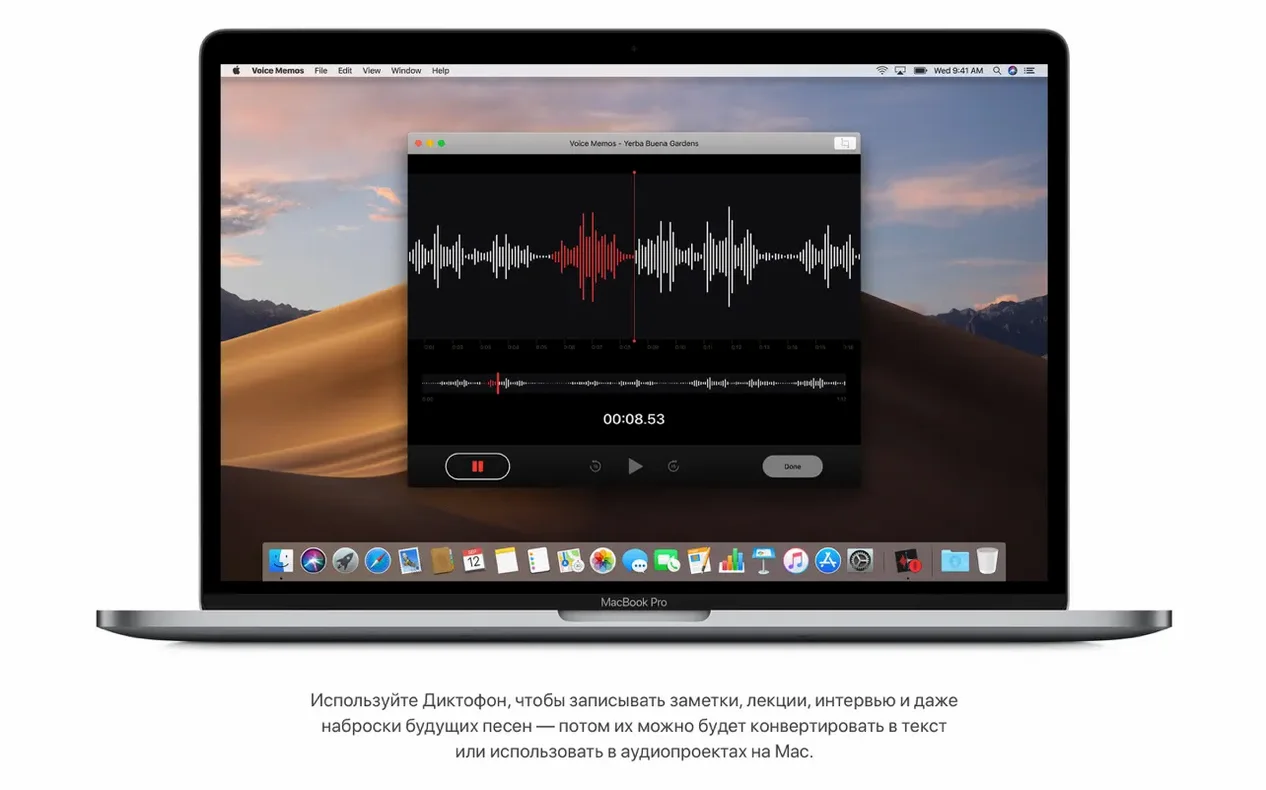
- Keeping a second Mac around for voice memos, Home app control, or large FaceTime calls
Needs a Metal-capable graphics card on older Mac Pros
- Requires a Metal-capable graphics card on Mac Pro mid 2010 and mid 2012 models
- Needs at least 12.5 GB of free storage just for the base install
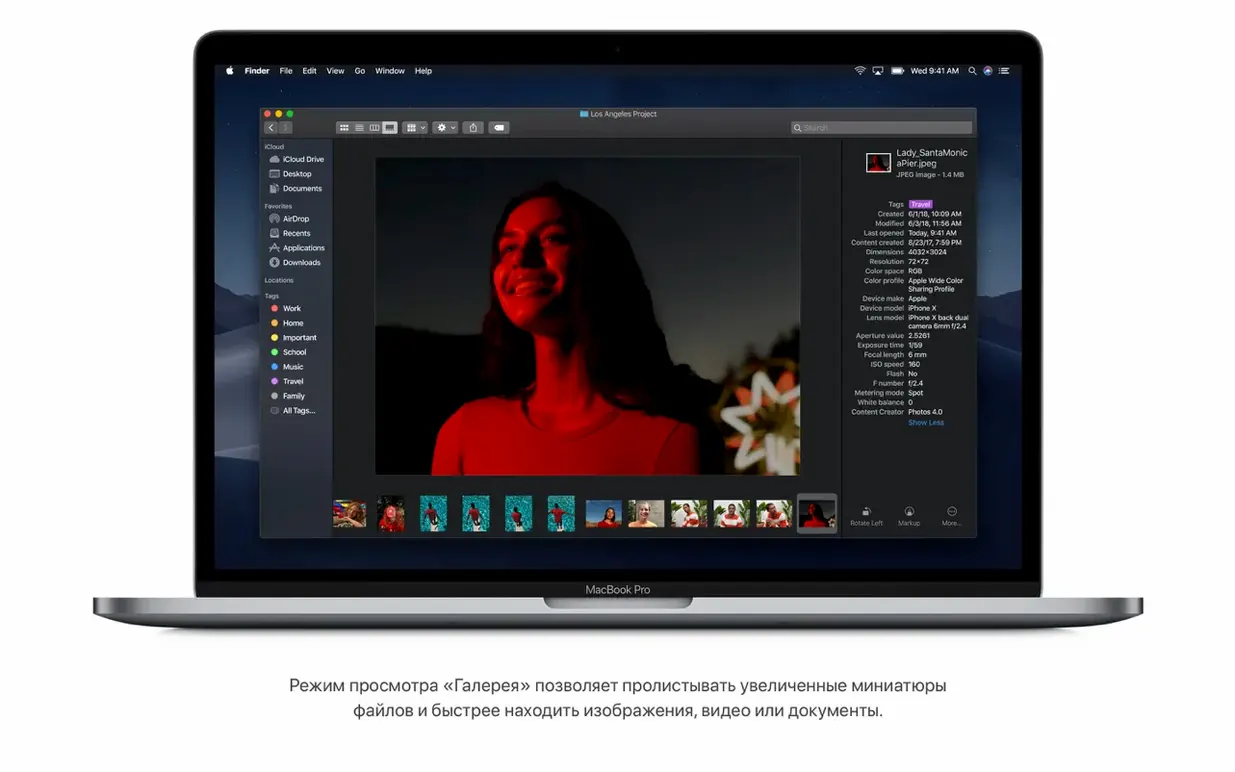
- Finder's Gallery View with file previews and metadata won't be there if you later drop back to an older system
A realistic way in: you pull a late-2012 iMac out of a cupboard. You format the drive, install Mojave, and open Safari to check it works. Then you use Finder to lock a sensitive PDF with a password before copying it to a shared folder. No third-party tools needed. The system stays out of your way. That is the whole point.
Swap Recents for your working folder in Finder windows
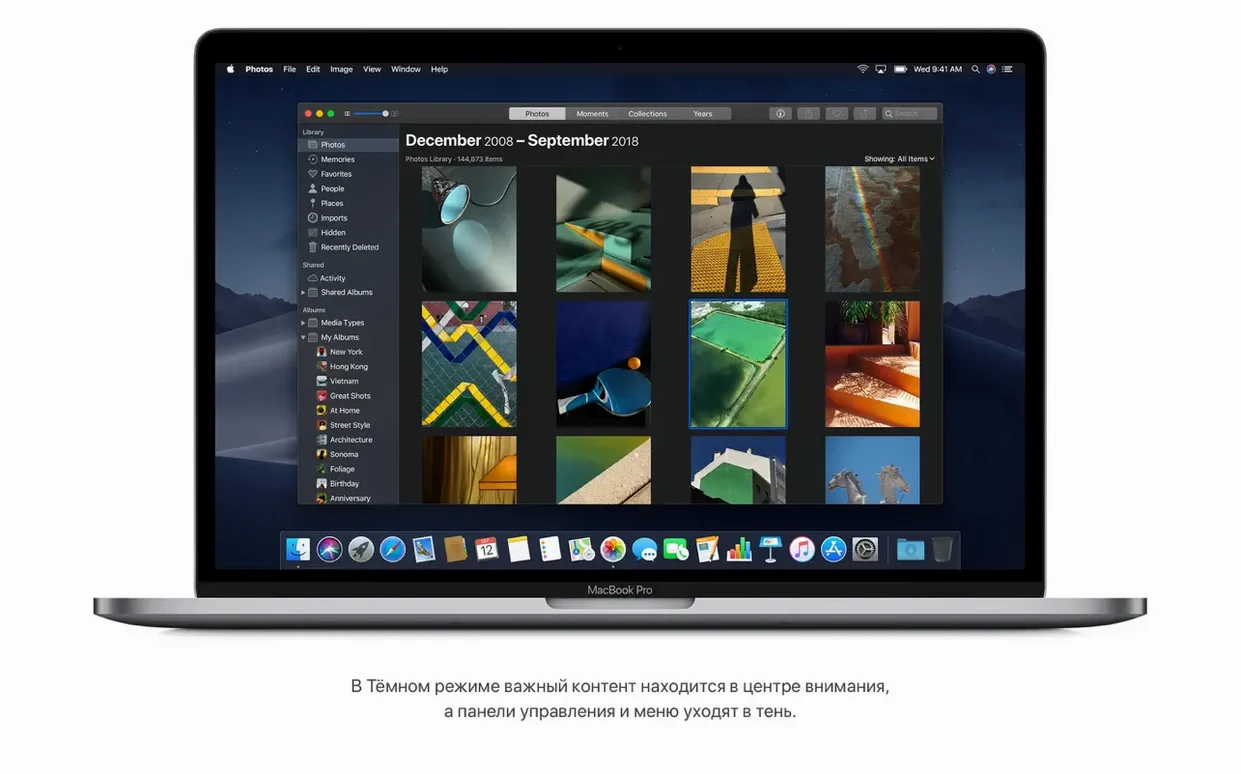
Dark Mode gets all the attention, but a few other settings make more difference to daily use. Open System Preferences and hit these early.
Finder > Preferences > General. Change New Finder windows show to your working folder, not Recents. Recents is a time sink on a fresh install. Then switch to the Advanced tab and tick Show all filename extensions. You will avoid the endless double-take of renaming a file and wondering whether it is really a .pdf or just called that.
Dock > Automatically hide and show the Dock. On a 13-inch MacBook Air screen, reclaiming the bottom 60 pixels feels like a free display upgrade. While you are there, uncheck Show recent applications in Dock unless you genuinely use it.
Security & Privacy > General. Under Allow apps downloaded from, consider switching to App Store and identified developers if you plan to install utilities from outside the App Store. The default can get in the way fast. On the FileVault tab, turn FileVault on only after you have verified the install boots cleanly — encrypting too early makes troubleshooting harder if something goes wrong later.
Desktop & Screen Saver > Desktop. Pick a static wallpaper. Mojave's dynamic desert scene shifts from day to night and it is lovely, but it also hits the GPU on older Intel HD Graphics 4000 machines. A plain colour or a still image keeps the fans quieter.
Fewer sleep/wake kernel panics on older MacBook Pros
Version 10.14.6 (18G103) is a stability release. Apple describes it as an update that "improves the stability and reliability of the Mac." In practice, that means fewer kernel panics waking from sleep on older MacBook Pro models, and a Safari build that handles modern TLS certificates without throwing connection errors.
Earlier Mojave point releases brought things people now take for granted. Group FaceTime with up to 32 participants arrived in 10.14.1, which matters if you still use an older Mac as a kitchen video-call station. 10.14.4 moved the News app to a proper sidebar layout and added support for Apple News+, though the catalog page only notes the app itself. 10.14.5 fixed an audio latency bug that had plagued USB audio interfaces, something anyone using a mid-2012 Mac Pro for light recording work will appreciate.
What the updates did not change is equally worth knowing. The 64-bit transition warning appeared in Mojave but did not block 32-bit apps — that came in Catalina. So 10.14.6 remains the last macOS where old Adobe CS6 suites and similar 32-bit holdouts launch without complaint. That alone keeps a lot of machines on this version.
Fix the installer refusal with a correct system clock
The installer refuses to start. This usually means the system clock is wrong. Open Terminal and run date. If it shows a date years off, the installer certificate check fails. Set the correct date manually under Date & Time preferences, or if the Mac cannot reach a time server yet, use Terminal with sudo date MMDDHHmmYY to set it before running the installer.
Stacks make a mess of an existing desktop. When you first turn on Stacks, Mojave groups everything by kind. Screenshots pile up next to PDFs and folders. Right-click the desktop and choose Group Stacks By > Date Last Opened instead. It groups recent work together and leaves old clutter in its own stack. Much more useful day to day.
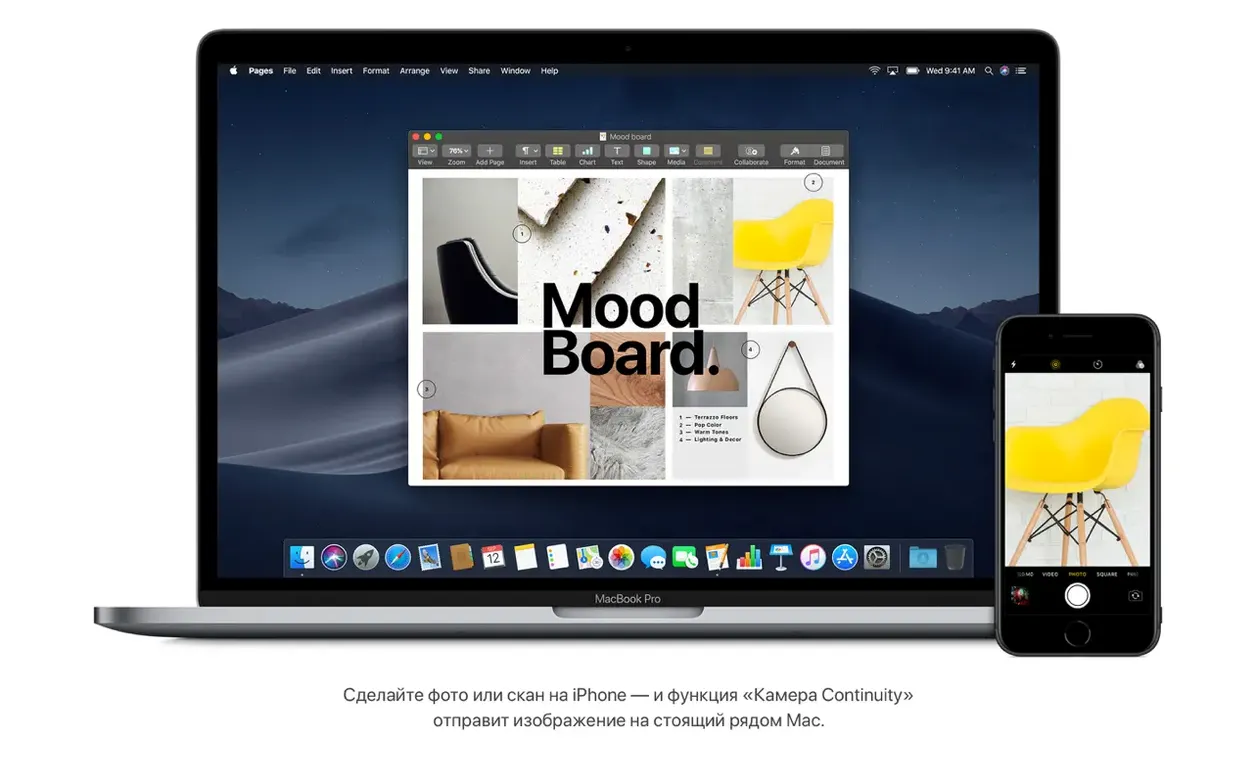
Continuity camera or document scan does not appear. Both devices need Bluetooth and Wi-Fi turned on, and they need the same Apple ID signed into iCloud. The Mac must be on the same network as the iPhone or iPad. If it still does not work, sign out of iCloud on the Mac, restart, and sign back in. That clears a stuck handoff token more often than it should.
macOS Mojave DMG download fails to boot on a USB stick. Some people grab a macos mojave download dmg and use Disk Utility to restore it to a USB drive, then find the Mac ignores it at startup. The fix is to use the createinstallmedia command inside the installer app bundle instead of a manual restore. Booting from a properly made USB installer avoids the firmware checks that tripped up some Mac Pro 2013 models.
Dark Mode and some older apps do not get along. A handful of Carbon-based tools draw black text on a dark background. If an app looks broken, quit it, right-click its icon in Finder, choose Get Info, and tick Open in Low Resolution. That is a blunt fix, but it works for the odd utility that never got a Cocoa rewrite.
What’s new
Improves the stability and reliability of the Mac.
Requirements
- macOS 10.8 or later to begin the upgrade
- Intel 64-bit architecture
- 2 GB memory
- 12.5 GB available storage
- MacBook Early 2015 or newer, MacBook Air Mid 2012 or newer, MacBook Pro Mid 2012 or newer, Mac mini Late 2012 or newer, iMac Late 2012 or newer, iMac Pro 2017, Mac Pro Late 2013 or mid 2010/mid 2012 with recommended Metal-capable graphics cards
FAQ
Which Macs can run macOS Mojave?
It supports MacBook Air from mid 2012, MacBook Pro from mid 2012, Mac mini from late 2012, iMac from late 2012, iMac Pro 2017, and Mac Pro from late 2013 (or mid 2010/mid 2012 with a Metal-capable card).
Does macOS Mojave include the Home app?
Yes. The Home app, Voice Memos, and group FaceTime for up to 32 people are all built in.
How much space does a clean install need?
12.5 GB of available storage and at least 2 GB of memory.
Comments 0
Sign in or create an account to leave a comment.
No comments yet…
If you’ve installed it, say how it went. Mention your Mac and macOS version — it helps the next person more than you’d think.