Adobe Photoshop for macOS


Description
Most image problems come down to one thing: the tool gets in the way. You need to cut out a subject, blend two photos, or put text over an image without flattening everything else. Photoshop is built for exactly that kind of work.
- Open a photo and use one-click selection with automatic masking to isolate the subject.
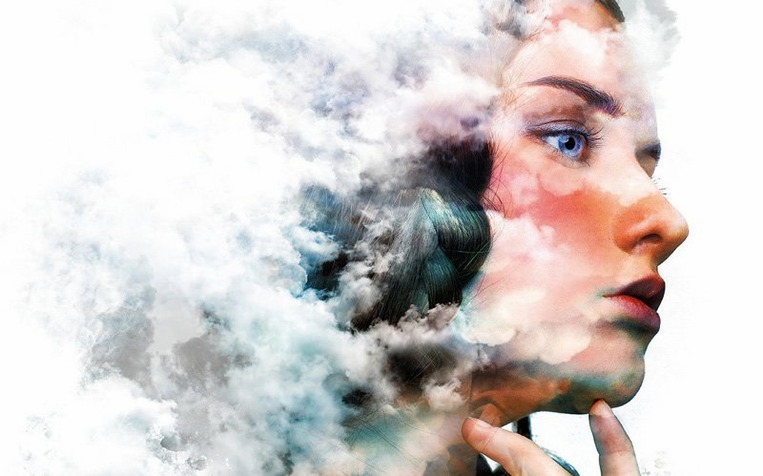
- Combine photos, diagrams and text into a single composition.
- Switch to digital painting, animation or graphic design tools for posters, packaging, banners and web layouts.
- Use Prompt to Edit for natural-language changes, or Markup to guide AI generation with visual notes.
- Set which file formats show up in Save As and Save a Copy dialogs, then export.
It suits photographers, illustrators and designers who need one app for several jobs. A desktop version and an iPad version cover the same product family, and Adobe Stock content works inside the app. Worth it if you regularly move between photo fixes and layout work.
Apple Silicon progress on a Mac Studio and M1 Air
I ran version 27.10 on a Mac Studio with 32 GB of RAM and on an M1 MacBook Air with 16 GB. The difference is what you would expect — but Photoshop on Apple Silicon has come a long way.
On the Studio, opening a 200 MB layered file takes about three seconds. On the Air, it takes six. Not instantaneous, but not the coffee-break wait of the Intel days either. Once the file is open, brushing, transforming and moving layers stays smooth on both machines. The Light adjustment layer added in this version does its recalculations in real time without a progress bar popping up. That matters when you are nudging highlights half a stop on a 50-megapixel raw file.
Memory pressure is the real story. Photoshop will happily grab 20 GB if you let it. With two dozen large files open, the Air's swap usage climbs and things get leisurely. The Studio barely notices. If you work with files over 500 MB, 16 GB machines will page to disk eventually. The app itself does not crash — Adobe fixed the memory leaks that plagued version 25 — but macOS feels the weight.
Neural Filters are a separate consideration. The pack needs extracting to the Adobe UXP plugins folder, and once loaded, they run locally. Skin Smoothing and Smart Portrait complete in a few seconds on Apple Silicon. On an Intel Mac with Rosetta, the same filters take noticeably longer. The AI Assisted editor in beta is still finding its feet — it responds within a couple of seconds for simple Prompt to Edit requests, but complex Markup-guided edits can stall for five or six seconds while the model works.
For everyday photo work — curves, masks, healing brush, clone stamp — the app feels immediate. No beachballs, no unexplained pauses. That was not true three years ago.
Affinity Photo runs lighter, Pixelmator keeps it simple
Three apps come up in the same conversation, and each fits a different person.
Affinity Photo. Lighter on resources, snappier on older Macs, and built for Apple Silicon from day one. Its raw development is good. Its layer system is logical. What it lacks is the twenty years of plug-in ecosystem and the sheer depth of selection tools. Photoshop's automatic masking and one-click subject isolation are still ahead. If you do mostly photo editing and occasional compositing, Affinity Photo covers it. If you regularly build complex comps with dozens of masked layers, Photoshop earns its keep.
Pixelmator Pro. The most Mac-like of the three. It uses Core ML, Metal and every Apple framework available. Opening the same 200 MB file, Pixelmator Pro is faster — sometimes by a third. Its interface is cleaner. But it falls short on typography tools, print-ready exports and anything involving precise colour separations. Designers who send work to print still need Photoshop's CMYK controls and soft-proofing. Pixelmator Pro is great for web and screen work. It is not a print production tool.
GIMP. Free, cross-platform, eternally almost-there. It opens .psd files, it has layers, it has plug-ins. The interface fights you on every third action. Selection refinement is rough. Non-destructive editing is bolted on, not built in. For quick crops and resizes, it works. For professional compositing, the time you lose working around its quirks costs more than any licence fee.
Photoshop sits in the middle: heavier than Pixelmator Pro, deeper than Affinity Photo, more polished than GIMP. It is the only one of the four that combines print-level colour management, a mature brush engine and AI editing tools in one download.
Soft-proofing and per-channel curves for print work
Photographers who print their work. The soft-proofing setup and per-channel curves save wasted paper. If you regularly prepare files for offset or giclée, the other apps on this list will trip you up at some point. Photoshop will not.
Composite artists and retouchers. People who stitch together eight exposures, replace skies, smooth skin non-destructively and paint in light. The Light adjustment layer alone changes how fast you can balance a composite. Add the frequency-separation-friendly healing tools and you have a workflow that nothing else on macOS matches.
Designers who jump between Photoshop and Illustrator. Smart Objects, linked files and the shared colour engine mean a logo tweaked in Illustrator updates in your Photoshop mockup without re-exporting. That back-and-forth is the reason agencies keep Photoshop around.
It is less essential for illustrators who work in vectors, for UI designers who live in Figma, and for casual photographers who edit a dozen holiday photos twice a year. Those users get more joy from a lighter app.
The Light adjustment layer separates luminance from colour
Version 27 added the Light adjustment layer — a small feature that removes a big friction point. Before, adjusting exposure and shadows meant either a destructive edit or a curves layer that affected colour as well as luminance. Now you can pull highlights down on a portrait without shifting skin tones. That alone has replaced three steps in a typical retouching session.
The AI Assisted editor, still in beta, is the other change you notice. Type "remove the power lines" and the app does it — usually well, sometimes with odd artefacts along the edges. Markup lets you scribble roughly where you want a new element. It is not a finished tool yet, but it already saves minutes on tasks that used to need the clone stamp and a steady hand.
Dynamic Text for shapes and paths arrived recently too. Putting type on a curved path used to mean converting to a shape or wrestling with the text tool options. Now you click the path and start typing. Small quality-of-life fixes like this — and the customisable Save As dialogs — add up over a working day.
Neural Filters remain a mixed bag. Some, like Skin Smoothing, are genuinely useful. Others feel like demos. The important bit is that the pack runs locally once extracted, so you are not waiting on Adobe's servers.
If you are coming from an older build, these are not headline-grabbing changes. They are the kind that remove small annoyances one by one. The app feels more cohesive than it did two years ago, and it asks less of your patience.
What’s new
Fixes and performance improvements for Photoshop 2026, version 27.11, now available from Adobe.
Requirements
- macOS 14 or later
- Apple Silicon or Intel 64-bit
FAQ
What can I use Photoshop for on a Mac?
Photo editing, compositing, digital painting, animation, and graphic design for posters, packaging, banners and web.
Comments 0
Sign in or create an account to leave a comment.
No comments yet…
If you’ve installed it, say how it went. Mention your Mac and macOS version — it helps the next person more than you’d think.